
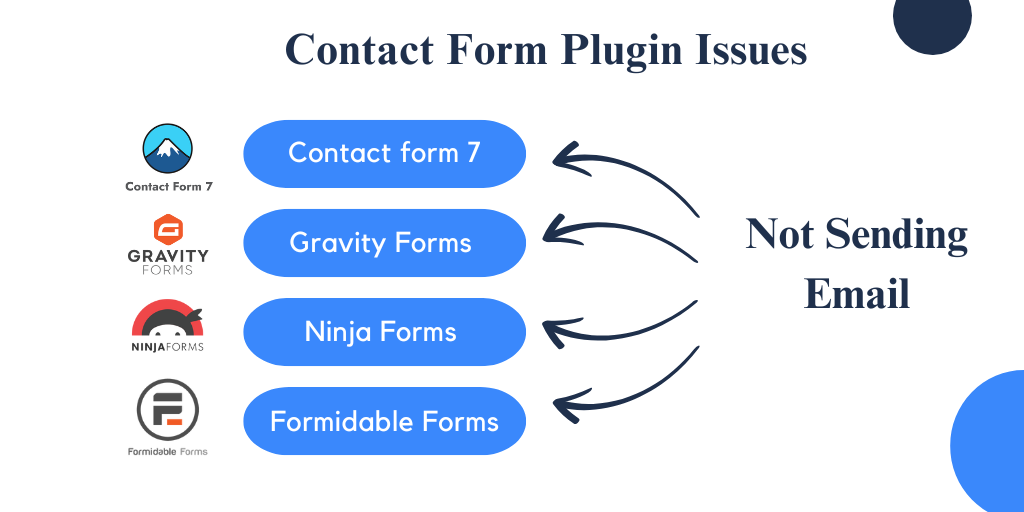
If your WordPress contact form isn’t delivering messages, it can disrupt communication and potential business. This guide helps WordPress beginners, website owners, and small business owners diagnose and resolve common email sending issues.
Short Answer
Your WordPress contact form likely isn’t sending emails due to server-side limitations, incorrect email configuration within your form plugin, or a lack of proper SMTP authentication. WordPress’s default email function often struggles with modern hosting environments, leading to messages being blocked or marked as spam before they reach the recipient.
Why This Happens
WordPress, by default, uses the PHP `mail()` function to send emails. While this method is straightforward, it often encounters significant challenges in modern web hosting environments. Many hosting providers restrict or disable PHP `mail()` due to its susceptibility to spam abuse. Without proper authentication, emails sent this way lack the necessary digital signatures (like SPF and DKIM records) that email servers use to verify a sender’s legitimacy. Consequently, these emails are frequently flagged as spam, rejected outright, or simply disappear without a trace.
Beyond server restrictions, common misconfigurations within the contact form plugin itself can prevent emails from sending. This includes incorrect ‘From’ or ‘To’ email addresses, using a ‘From’ address that doesn’t match your website’s domain, or issues with the email headers. Sometimes, a plugin conflict or an outdated form plugin can also interfere with email delivery. Understanding these underlying causes is the first step toward implementing a reliable solution for your website’s communication.
How to Fix It
- Check Spam Folders and Email Addresses
- Verify Contact Form Plugin Settings
- Install and Configure an SMTP Plugin
- Review Server Email Logs
- Test with a Different ‘From’ Email Address
- Check for Plugin Conflicts
- Contact Your Hosting Provider
Example: Basic SMTP Plugin Configuration Fields
SMTP Host: smtp.your-email-provider.com
SMTP Port: 465 (for SSL) or 587 (for TLS)
Encryption: SSL/TLS
Authentication: Yes
SMTP Username: [email protected]
SMTP Password: YourEmailPassword
From Email: [email protected]
From Name: Your Website Name
Check These Before Editing Code
- Back up your WordPress website before making any significant changes.
- Ensure you have administrator access to your WordPress dashboard and hosting control panel.
- Gather your email provider’s SMTP details (host, port, username, password) if you plan to use an SMTP plugin.
- Clear any website caching after making changes to ensure they take effect immediately.
Common Mistakes to Avoid
- Using a generic ‘From’ email address that does not match your website’s domain, which often triggers spam filters.
- Overlooking the recipient’s spam, junk, or promotions folders where legitimate emails might land.
- Assuming PHP `mail()` will work reliably on all hosting environments without additional configuration.
- Incorrectly entering the recipient email address in the contact form settings, leading to delivery failures.
- Not testing the form thoroughly after making changes to confirm the issue is resolved.
Practical Expert Note
The most robust and reliable solution for WordPress email delivery is to use an SMTP (Simple Mail Transfer Protocol) plugin. This method bypasses the unreliable PHP `mail()` function and routes your emails through a dedicated email service provider, such as Gmail, Outlook, SendGrid, Mailgun, or your hosting provider’s email server. Using an SMTP service ensures that your emails are properly authenticated with SPF (Sender Policy Framework) and DKIM (DomainKeys Identified Mail) records, which are crucial for improving deliverability and preventing your messages from being marked as spam. An SMTP plugin allows WordPress to ‘hand off’ emails to a professional email server, which is designed to send emails reliably and securely. This approach significantly increases the chances of your contact form submissions reaching their intended recipients without issues.
When to Get Help
If you have systematically followed all troubleshooting steps, configured an SMTP plugin, and verified your settings without success, it may be time to seek professional assistance. Complex server-side issues, intricate firewall rules, or deep-seated plugin conflicts can sometimes be beyond the scope of general troubleshooting. If your business relies heavily on contact form submissions, or if you are short on time, a WordPress developer or your hosting provider’s support team can offer specialized help. They can delve into server logs, perform advanced diagnostics, and identify specific configurations that might be blocking your emails, ensuring your website’s communication channels are fully functional.