
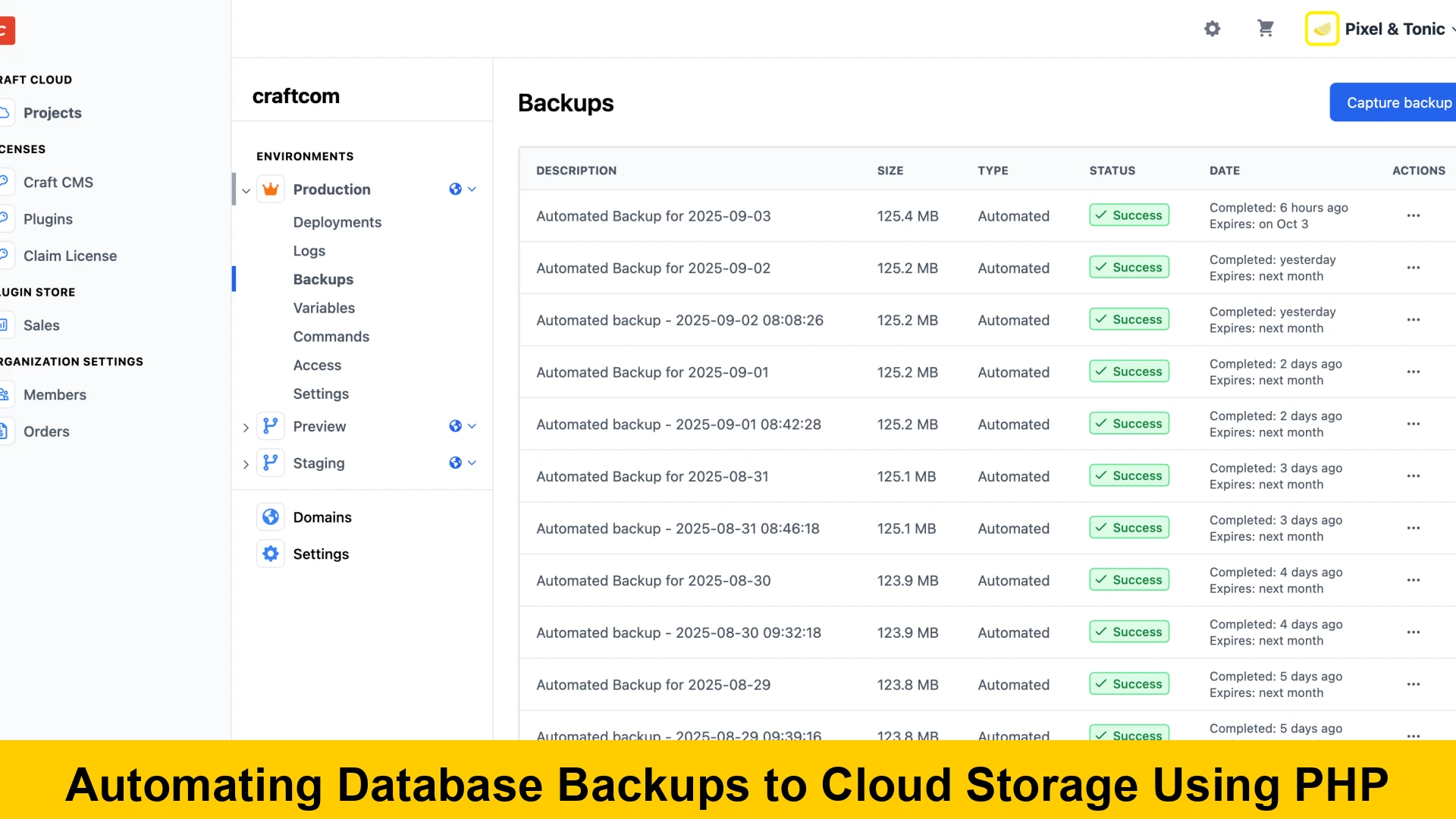
In the digital age, data is the lifeblood of nearly every application and business. Losing critical database information due to hardware failure, cyberattack, or human error can be catastrophic. While manual backups offer a basic safety net, they are prone to oversight, inconsistency, and can be labor-intensive. This is where automating database backups to cloud storage using PHP becomes not just a convenience, but a necessity for robust data management strategies. This comprehensive guide will walk you through the entire process, from understanding the core concepts to implementing a robust, automated PHP database backup solution for cloud storage.
By leveraging PHP, a powerful and widely-used server-side scripting language, you can create scripts that connect to your database, export its contents, and then securely transfer this data to a remote cloud storage service like AWS S3, Google Cloud Storage, or Microsoft Azure Blob Storage. This approach not only enhances data security and availability but also frees up valuable time and resources, allowing you to focus on developing your applications rather than worrying about the integrity of your backups. We will delve into the intricacies of setting up a reliable system, covering best practices, error handling, and how to schedule your backups for maximum efficiency and peace of mind.
The Indispensable Need for Automated Database Backups
Before diving into the technical implementation, it’s crucial to understand why automated backups, especially to cloud storage, are paramount. Many developers and businesses only realize the true value of a backup when they face a critical data loss incident. Manual backups, while better than nothing, are notoriously unreliable in the long run. They depend on human memory, consistent execution, and often lead to outdated or incomplete backups.
Risks of Manual Backups and On-Premise Storage
- Human Error: Forgetting to run a backup, backing up the wrong database, or incorrectly configuring the backup process.
- Inconsistency: Manual processes rarely follow a strict schedule or methodology, leading to gaps in backup history.
- Single Point of Failure: Storing backups on the same server as the live database or on local external drives makes them vulnerable to the same disasters (hardware failure, theft, fire, natural disasters) that could affect the primary data.
- Time-Consuming: Manually managing backups for multiple databases or frequent intervals can consume significant operational time.
- Lack of Verification: Without an automated system, verifying the integrity and restorability of backups is often overlooked until it’s too late.
Advantages of Cloud Storage for Databases
Cloud storage offers a multitude of benefits that make it an ideal destination for your database backups, significantly enhancing your disaster recovery strategy:
- Durability and Reliability: Cloud providers are engineered for extreme durability, often boasting 99.999999999% (eleven nines) of durability for objects. Data is typically replicated across multiple facilities and devices.
- Scalability: Cloud storage scales effortlessly. You pay only for what you use, and you never have to worry about running out of space.
- Accessibility: Backups stored in the cloud can be accessed from anywhere with an internet connection, facilitating quicker recovery during outages.
- Cost-Effectiveness: Eliminates the need for expensive on-premise storage hardware, maintenance, and electricity.
- Security: Reputable cloud providers offer robust security features, including encryption at rest and in transit, access controls, and compliance certifications.
- Geographic Redundancy: Backups can be stored in different geographical regions, protecting against regional disasters.
When you automate database backups to cloud storage using PHP, you’re not just creating copies; you’re building a resilient, off-site data recovery solution that is secure, scalable, and highly available. This is a crucial step towards modern data management.
Understanding the Core Components of a PHP Backup System
Building an automated PHP database backup solution involves several key components working in concert. We’ll be focusing primarily on MySQL/MariaDB databases, as they are ubiquitous in PHP-based applications, but the principles can be adapted for other database systems.
1. The Database Dump Utility (`mysqldump`)
For MySQL and MariaDB, the standard utility for creating a logical backup (a set of SQL statements that can recreate the database) is mysqldump. This command-line tool is incredibly powerful and versatile, allowing you to export entire databases, specific tables, or even just schema definitions.
mysqldump -u [username] -p[password] [database_name] > [backup_file_name].sql
For large databases, it’s often beneficial to compress the output directly:
mysqldump -u [username] -p[password] [database_name] | gzip > [backup_file_name].sql.gz
This command pipelines the output of mysqldump directly into gzip, creating a compressed backup file, which saves disk space and reduces upload times to cloud storage. You can find detailed information on `mysqldump` options in the official MySQL Documentation.
2. PHP Script for Execution and Cloud Interaction
PHP acts as the orchestrator. Your PHP script will be responsible for:
- Executing the
mysqldumpcommand. - Handling any errors during the dump process.
- Interacting with your chosen cloud storage service to upload the backup file.
- (Optional but recommended) Deleting old local backup files to manage disk space.
For cloud interaction, you’ll typically use an official SDK (Software Development Kit) provided by the cloud vendor. For example, AWS provides the AWS SDK for PHP, Google Cloud offers a PHP client library, and Azure has its own PHP SDK. These SDKs simplify authentication and file transfer greatly. Using Composer for dependency management is highly recommended to easily integrate these SDKs.
3. Cloud Storage Service
As mentioned, popular choices include:
- AWS S3 (Amazon Simple Storage Service): Highly scalable, durable, and cost-effective. Excellent for various storage classes.
- Google Cloud Storage: Similar to S3, offering different storage classes and strong integration with Google Cloud ecosystem.
- Azure Blob Storage: Microsoft’s object storage solution, well-suited for those in the Azure ecosystem.
For this guide, we’ll primarily focus on AWS S3 as a common example, but the concepts are transferable.
4. Scheduling Mechanism (Cron Job)
To truly automate database backups, you need a way to execute your PHP script at regular intervals without manual intervention. On Linux/Unix-like systems, this is achieved using cron jobs.
0 2 /usr/bin/php /path/to/your/backup_script.php >/dev/null 2>&1
This cron entry would run the PHP script daily at 2:00 AM. We’ll detail cron job setup later.
Step-by-Step Guide: Setting Up Automated PHP Database Backups to AWS S3
Let’s outline the practical steps to implement your automated PHP database backup system targeting AWS S3. This covers everything from environment setup to final scheduling, providing a clear step-by-step guide automate PHP database backups.
Prerequisite 1: Server Environment and Database Access
Ensure your server has:
- PHP installed (preferably PHP 7.4+ or 8.x).
mysqldumpinstalled and accessible from the command line.- A database user with sufficient privileges to read all data from the database you intend to back up.
- Composer installed for managing PHP dependencies.
Prerequisite 2: AWS S3 Bucket and IAM User Configuration
You’ll need an S3 bucket to store your backups and an IAM user with programmatic access rights.
1. Create an S3 Bucket:
Log in to your AWS Management Console, navigate to S3, and create a new bucket. Choose a unique name (e.g., your-app-database-backups) and select a region that makes sense for your application and data residency requirements. Consider enabling server-side encryption and versioning for added security and recovery options.
2. Create an IAM User and Policy:
Go to IAM > Users > Add user. Give it a descriptive name (e.g., backup-script-user). Select “Programmatic access” for Access type. In the next step, attach a policy. For maximum security, create a custom policy that grants only the necessary permissions to your specific S3 bucket.
{
    "Version": "2012-10-17",
    "Statement": [
        {
            "Effect": "Allow",
            "Action": [
                "s3:PutObject",
                "s3:GetObject",
                "s3:DeleteObject",
                "s3:ListBucket"
            ],
            "Resource": [
                "arn:aws:s3:::your-app-database-backups",
                "arn:aws:s3:::your-app-database-backups/"
            ]
        }
    ]
}
Replace your-app-database-backups with your actual bucket name. This policy allows the user to put, get, and delete objects within that specific bucket and list its contents. After creating the user, note down the Access Key ID and Secret Access Key; these will be used by your PHP script.
Step 1: Install AWS SDK for PHP
Navigate to your project directory (or a new directory where your backup script will live) and install the AWS SDK using Composer:
composer require aws/aws-sdk-php
Step 2: Create a Configuration File
It’s bad practice to hardcode sensitive credentials directly into your PHP script. Use environment variables or a separate configuration file. A common approach is to use a .env file and a library like vlucas/phpdotenv to load them.
composer require vlucas/phpdotenv
Create a .env file in your script’s directory:
DB_HOST=localhost
DB_NAME=your_database_name
DB_USER=your_database_user
DB_PASS=your_database_password

AWS_ACCESS_KEY_ID=YOUR_AWS_ACCESS_KEY_ID
AWS_SECRET_ACCESS_KEY=YOUR_AWS_SECRET_ACCESS_KEY
AWS_REGION=your-aws-region
AWS_BUCKET=your-app-database-backups

BACKUP_DIR=/path/to/your/backup/temp_directory
MYSQLDUMP_PATH=/usr/bin/mysqldump # Or wherever mysqldump is located
RETENTION_DAYS=7 # How many days to keep local backups
Remember to add .env to your .gitignore file if you’re using version control, to prevent sensitive data from being committed.
Step 3: Develop the PHP Backup Script
Create a file, e.g., backup_script.php. This is where the magic happens, enabling a PHP script to backup MySQL to cloud storage.
<?php

require __DIR__ . '/vendor/autoload.php';

use AwsS3S3Client;
use DotenvDotenv;

// Load environment variables
$dotenv = Dotenv::createImmutable(__DIR__);
$dotenv->load();

// Database credentials from .env
$dbHost = $_ENV['DB_HOST'];
$dbName = $_ENV['DB_NAME'];
$dbUser = $_ENV['DB_USER'];
$dbPass = $_ENV['DB_PASS'];

// AWS S3 credentials from .env
$awsAccessKeyId = $_ENV['AWS_ACCESS_KEY_ID'];
$awsSecretAccessKey = $_ENV['AWS_SECRET_ACCESS_KEY'];
$awsRegion = $_ENV['AWS_REGION'];
$awsBucket = $_ENV['AWS_BUCKET'];

// Backup specific settings
$backupDir = rtrim($_ENV['BACKUP_DIR'], '/') . '/'; // Ensure trailing slash
$mysqldumpPath = $_ENV['MYSQLDUMP_PATH'];
$retentionDays = (int)$_ENV['RETENTION_DAYS'];

// Create backup directory if it doesn't exist
if (!is_dir($backupDir)) {
    mkdir($backupDir, 0755, true);
}

// Generate a unique filename with timestamp
$filename = sprintf(
    '%s_%s.sql.gz',
    $dbName,
    date('Y-m-d_H-i-s')
);
$filePath = $backupDir . $filename;

// 1. Execute mysqldump to create the database backup
$command = sprintf(
    '%s -h %s -u %s -p%s %s | gzip > %s',
    escapeshellarg($mysqldumpPath),
    escapeshellarg($dbHost),
    escapeshellarg($dbUser),
    escapeshellarg($dbPass),
    escapeshellarg($dbName),
    escapeshellarg($filePath)
);

echo "Executing mysqldump...n";
exec($command, $output, $returnVar);

if ($returnVar !== 0) {
    error_log("mysqldump failed with error code: " . $returnVar . "nOutput: " . implode("n", $output));
    die("Database backup failed locally.");
}

echo "Database backup created: " . $filePath . "n";

// 2. Upload the backup to AWS S3
try {
    $s3Client = new S3Client([
        'version'     => 'latest',
        'region'      => $awsRegion,
        'credentials' => [
            'key'    => $awsAccessKeyId,
            'secret' => $awsSecretAccessKey,
        ],
    ]);

    $s3Client->putObject([
        'Bucket'     => $awsBucket,
        'Key'        => 'db_backups/' . $filename, // Store in a 'db_backups' folder in S3
        'SourceFile' => $filePath,
        'ACL'        => 'private', // Keep the backup private
        'ServerSideEncryption' => 'AES256' // Encrypt at rest in S3
    ]);

    echo "Backup uploaded to S3: s3://" . $awsBucket . "/db_backups/" . $filename . "n";

} catch (Exception $e) {
    error_log("S3 upload failed: " . $e->getMessage());
    die("S3 upload failed.");
}

// 3. Clean up old local backup files
$files = glob($backupDir . '.sql.gz');
$now = time();

echo "Cleaning up old local backups...n";
foreach ($files as $file) {
    if (is_file($file)) {
        if ($now - filemtime($file) >= ($retentionDays  24  60  60)) {
            unlink($file);
            echo "Deleted old local backup: " . $file . "n";
        }
    }
}

echo "Backup process completed successfully!n";

?>
This PHP script is a comprehensive solution, covering local dump creation, cloud upload, and local cleanup. Remember to adjust permissions for `backup_script.php` and the `backup_dir` so that the user running the cron job has write access.
Step 4: Schedule the Backup with a Cron Job
This is the final step to automate PHP database backup to cloud. You need to tell your server to execute the PHP script at regular intervals. Connect to your server via SSH and open your crontab for editing:
crontab -e
Add the following line to schedule the backup daily at 2:00 AM. Adjust the path to your PHP executable and script file as needed.
0 2 /usr/bin/php /path/to/your/backup_script.php >/dev/null 2>&1
0 2: Runs at 0 minutes past 2 AM, every day, every month, every day of the week./usr/bin/php: The path to your PHP CLI executable. Usewhich phpto find it./path/to/your/backup_script.php: The absolute path to your PHP script.>/dev/null 2>&1: Redirects standard output and standard error to/dev/null, preventing emails from cron on successful runs. For debugging, you can change this to>/var/log/backup.log 2>&1to capture output.
Save and exit the crontab editor. Your automated backup system is now live!
Best Practices for Automating PHP Database Backups to Cloud
While the basic setup is functional, implementing best practices ensures your PHP backup solution is robust, secure, and reliable.
1. Security First
- Least Privilege: Ensure your database user and AWS IAM user have only the absolute minimum permissions required to perform their tasks.
- Secure Credentials: Never hardcode credentials. Use environment variables, a secrets management service (like AWS Secrets Manager), or a secure configuration file.
- Encryption: Encrypt your backups both in transit (SSL/TLS, which the AWS SDK handles by default) and at rest (server-side encryption in S3, enabled in our script). For highly sensitive data, consider client-side encryption before uploading.
- Restrict Access: Ensure your local backup directory has restricted permissions (e.g.,
chmod 700) so only the script’s user can access it. - IP Whitelisting: If possible, restrict access to your database from only known IP addresses (your application server, backup server).
- Review secure coding practices regularly to prevent vulnerabilities.
2. Retention Policies
Define clear data retention policies. How many daily, weekly, monthly, or yearly backups do you need? Cloud storage services offer lifecycle policies to automatically move older backups to cheaper storage tiers (e.g., S3 Glacier) or delete them after a certain period, which is crucial for cost management and compliance.
3. Monitoring and Alerting
Don’t just set it and forget it! Implement monitoring to ensure your backups are consistently running and completing successfully. Configure alerts (e.g., via email, Slack, or a dedicated monitoring service) for:
- Failed backup attempts (check the cron job’s output or script’s error logs).
- Unusual backup sizes (could indicate a problem with the dump or database).
- Successful completion (for peace of mind, though less critical than failures).
This proactive approach aligns with general advice for monitoring your applications.
4. Backup Verification and Testing
A backup is only good if you can restore from it. Regularly test your restoration process. This involves:
- Downloading a backup from cloud storage.
- Attempting to restore it to a separate, non-production database instance.
- Verifying the integrity and completeness of the restored data.
This practice helps identify issues with the backup process, the backup file itself, or the restoration procedure before a real disaster strikes.
5. Choose the Right Cloud Provider and Storage Class
Different cloud providers and their storage classes offer varying levels of durability, availability, and cost. Consider your budget, recovery time objectives (RTO), and recovery point objectives (RPO) when selecting a cloud provider and storage class. For instance, S3 Standard is great for frequent access, while S3 Standard-IA or Glacier might be better for less frequently accessed, long-term archives.
You can refer to the AWS S3 documentation for more on storage classes and lifecycle policies.
6. Handling Large Databases
For very large databases, a full dump might take a long time and put a strain on your server. Consider these strategies:
- MyDumper/MyLoader: These tools offer parallel dumping and loading, significantly speeding up the process compared to
mysqldump. - Incremental Backups: For transactional databases, explore solutions that offer incremental backups (e.g., MySQL’s binary logs or specialized backup tools). This is more complex to set up with simple PHP scripts but highly efficient for recovery.
- Separate Backup Server: Run the backup script from a dedicated server to offload the processing from your primary application server.
7. Error Logging and Notification
Expand the error handling in your PHP script to log detailed error messages to a file and, ideally, send notifications (e.g., email via PHPMailer or a notification service like SendGrid) to an administrator if a backup fails. This is crucial for maintaining the reliability of your automated system.
Advanced Considerations and Further Enhancements
Once you have a reliable simple PHP solution for automated cloud database backups, you might want to explore further enhancements:
Database-Specific Optimizations
- Transaction Isolation: Ensure your
mysqldumpcommand uses appropriate options like--single-transactionfor InnoDB tables to get a consistent snapshot without locking the database, minimizing impact on live operations. - Skip Tables: If certain tables contain temporary data or logs that aren’t critical for restoration, use
--ignore-tableto exclude them, reducing backup size and time.
Version Control for Backup Scripts
Treat your backup scripts like any other critical code. Store them in a version control system (like Git) to track changes, collaborate, and easily revert if necessary. Remember to keep sensitive credentials out of version control.
Utilizing Cloud Features for Enhanced Backups
- S3 Lifecycle Policies: Configure S3 bucket lifecycle rules to automatically transition older backups to colder storage tiers (e.g., S3 Infrequent Access, Glacier) for cost savings, or to delete them after a defined retention period.
- CloudWatch Alarms: For AWS users, create CloudWatch alarms to monitor the number of objects in your S3 bucket or the size of uploads, which can indirectly indicate if backups are succeeding.
Handling Multiple Databases
If you manage multiple databases, you can extend the script to iterate through an array of database names from your configuration, performing a backup for each. This makes setting up automated database backups using PHP highly scalable.
Pre- and Post-Backup Hooks
For complex applications, you might need to perform actions before or after the database dump. For instance, you might want to put your application into maintenance mode or quiesce specific services before dumping, and then bring them back online afterward. Your PHP script can integrate these hooks.
Troubleshooting Common Issues
Even with careful planning, issues can arise. Here are common problems and how to address them:
mysqldumpnot found: EnsureMYSQLDUMP_PATHin your.envfile is correct. Usewhich mysqldumpon your server to find the absolute path.- Database authentication errors: Double-check
DB_USERandDB_PASSin your.envfile. Verify the user has necessary permissions on the database. - S3 upload errors: Verify
AWS_ACCESS_KEY_ID,AWS_SECRET_ACCESS_KEY,AWS_REGION, andAWS_BUCKET. Ensure the IAM user has the correct S3 permissions. Check network connectivity to AWS. - Cron job not running: Make sure the path to PHP and your script in the cron entry is absolute and correct. Check cron logs (often in
/var/log/syslogor/var/log/cron) for errors. Redirecting output to a log file temporarily (>/tmp/backup.log 2>&1) can help debug. - Permissions issues: The user running the cron job (often
www-dataor the user you SSHed in as) needs read/write access to yourbackup_dirand execute permissions for the PHP script andmysqldump. - Backup file size zero or small: This often indicates
mysqldumpfailed silently or produced an empty dump. Check your database credentials and themysqldumpcommand syntax carefully.
By systematically checking each component and utilizing logging, you can quickly diagnose and resolve most issues with your automated backup system.
Conclusion
Automating Database Backups to Cloud Storage Using PHP is a critical practice for any modern web application. It transitions your data protection strategy from a manual, error-prone task to a reliable, scalable, and secure automated process. By following this guide, you’ve learned how to set up a comprehensive system that utilizes mysqldump for database exports, PHP for orchestration and cloud interaction, and cron jobs for scheduling.
Remember that a backup strategy is not a one-time setup; it requires continuous monitoring, occasional testing, and adherence to best practices like robust security, intelligent retention policies, and proactive error handling. Investing time in developing and maintaining a robust automate PHP database backup to cloud solution today will save you countless hours and potential financial losses in the face of future data incidents. Embrace the power of automation and secure your valuable data in the cloud, giving you the peace of mind to focus on what truly matters: building great applications and services.
The concepts discussed here provide a strong foundation for any developer looking to implement a reliable PHP database backup solution. Regularly reviewing and updating your backup strategy, adapting it to new technologies and threats, is key to long-term data security and business continuity. Your journey to secure and automated data protection has just begun, ensuring your applications remain resilient and your data always recoverable.