
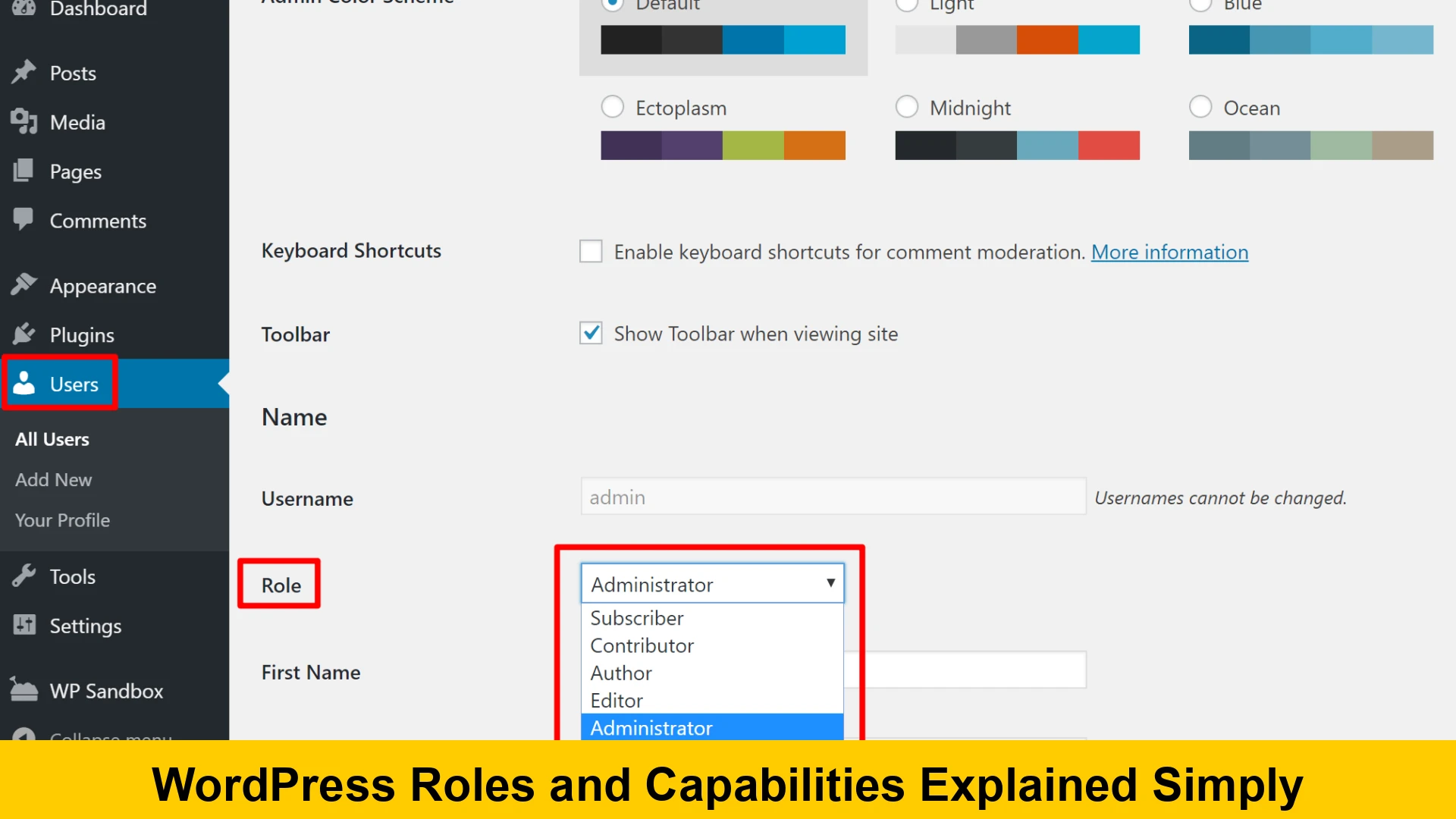
Introduction to WordPress User Roles and Permissions
Managing a website effectively requires more than just publishing great content; it involves managing the people who interact with your site behind the scenes. Whether you are running a personal blog or a massive corporate multi-author site, understanding how to control access is vital. This wordpress user roles and permissions guide is designed to help you navigate the complexities of user management without getting lost in technical jargon.
WordPress is built with a robust system that determines what a user can and cannot do. This system is divided into two parts: Roles and Capabilities. By default, WordPress comes with a predefined set of roles, each equipped with a specific set of permissions. As your site grows, learning how to manage wordpress user roles becomes a critical security and workflow task.
Why Understanding User Roles Matters
Security is the number one reason to master this topic. If every user on your site has administrative access, the risk of accidental site breakage or malicious takeover increases exponentially. By following the principle of least privilege—giving users only the access they need to perform their jobs—you significantly harden your site’s security. Furthermore, for those managing multi author wordpress blogs, roles help streamline the editorial workflow, ensuring that writers focus on writing while editors focus on reviewing.
The Core Difference: Roles vs. Capabilities
Before we dive into the specific roles, we must distinguish between the two pillars of the WordPress permission system. Understanding wordpress capability levels is the key to mastering custom configurations.
- Roles: A role is essentially a designation or a ‘label’ given to a user (e.g., Editor, Contributor).
- Capabilities: These are the specific tasks or actions a user can perform, such as ‘edit_posts’, ‘publish_posts’, or ‘switch_themes’.
Think of a Role as a bundle of Capabilities. When you assign a role to a user, you are essentially handing them a ring of keys where each key represents a specific capability.
WordPress Default User Roles Explained
Out of the box, WordPress provides five distinct roles for a standard installation. Each role has a specific purpose in the ecosystem of a website. Let’s look at wordpress default user roles in detail.
1. The Administrator
The Administrator is the most powerful role. On a single-site installation, the Administrator has access to every single feature. They can install plugins, change themes, delete content, and even delete other users. This role is intended for site owners and lead developers.
2. The Editor
When looking at wordpress editor vs administrator, the primary difference is the ability to affect the site’s structural integrity. An Editor can view, edit, publish, and delete any posts or pages, including those written by others. However, they cannot change site settings, install plugins, or manage themes. This is the ideal role for a content manager.
3. The Author
An Author has significantly less power than an Editor. They can upload files and publish their own posts. Crucially, they cannot edit or delete posts written by other users. They also lack access to Pages (the hierarchical post type). This role is perfect for trusted staff writers.
4. The Contributor
If you are wondering what can a wordpress contributor do, the answer is: write, but not publish. Contributors can write and edit their own posts, but they cannot publish them. An Administrator or Editor must review and publish their work. Additionally, Contributors cannot upload files (images), which is a common pain point for new users.
5. The Subscriber
The Subscriber is the most basic role. They can log in to the WordPress dashboard to update their user profile and change their password. They cannot write posts, view comments, or do anything else. This is typically used for membership sites or sites that require login to view content.
WordPress User Roles Explained for Beginners: A Comparison Table
To make wordpress user roles explained for beginners even simpler, here is a quick breakdown of permissions:
- Administrator: Everything.
- Editor: All content, but no site settings.
- Author: Own content only, can publish.
- Contributor: Own content only, cannot publish.
- Subscriber: Profile only.
Advanced Role: The Super Admin
In a WordPress Multisite network, there is an additional role known as the Super Admin. This user has ‘god-mode’ access across the entire network of sites. They can create new sites, manage network-wide plugins, and override local site administrators. If you are managing multi author wordpress blogs across a network, the Super Admin is the role that holds everything together.
How to Change User Roles in WordPress
Learning how to change user roles in wordpress is straightforward. If you are an Administrator, follow these steps:
- Navigate to ‘Users’ in the WordPress Sidebar.
- Select ‘All Users’.
- Check the box next to the user you wish to modify.
- Use the ‘Change role to…’ dropdown menu at the top.
- Click ‘Change’.
You can also edit an individual user profile to change their role. Remember to always double-check the permissions before elevating a user’s status.
Custom User Roles WordPress: Going Beyond the Defaults
Sometimes the default roles don’t quite fit your needs. For instance, you might want a ‘SEO Manager’ who can only access SEO plugin settings but not edit posts. This is where custom user roles wordpress come into play.
Using Code to Create Roles
Developers can use the add_role() function to create a brand new role with specific capabilities. Here is a basic example:
// Add a custom role called 'Task Manager'
add_role(
    'task_manager',
    'Task Manager',
    array(
        'read'         => true,
        'edit_posts'   => true,
        'upload_files' => true,
    )
);
By using wordpress capabilities explained through code, you can build a highly tailored backend experience. For more technical details, you can visit the Official WordPress Developer Documentation.
How to Restrict User Access in WordPress
Security often involves knowing how to restrict user access in wordpress. Beyond just assigning roles, you may want to hide specific dashboard menus or restrict access to certain plugins based on the user’s role. This prevents clutter and reduces the chance of accidental configuration changes.
One common method is to use a wordpress user roles and permissions plugin. These tools provide a graphical interface to toggle specific capabilities on and off for any role, including the default ones.
Popular Plugins for Role Management
- User Role Editor: The most popular choice for changing capabilities.
- Members: A powerful tool for managing roles and content permissions.
- Capability Manager Enhanced: Provides a simple interface to manage per-role capabilities.
Best Practices for Managing WordPress User Roles
To keep your site healthy and secure, follow these industry standards:
- Audit Regularly: Periodically check your user list and demote or delete users who no longer need access.
- Avoid Admin Sharing: Never share a single Administrator account among multiple people. Create individual accounts for accountability.
- Use Contributor for Guests: When accepting guest posts, the Contributor role is the safest option.
- Educate Your Team: Ensure your Authors and Editors understand their permissions to avoid confusion.
For a deeper dive into website security and user management best practices, check out Sucuri’s Security Guide.
How to Create Custom Roles in WordPress Without Code
If you aren’t comfortable with PHP, you might wonder how to create custom roles in wordpress. As mentioned earlier, plugins are your best friend here. With a plugin like ‘User Role Editor’, you can simply click ‘Add Role’, name it, and check the boxes for the capabilities you want that role to have. This is highly recommended for non-technical site owners who need granular control.
Conclusion
Mastering the wordpress user roles and permissions guide is an essential skill for any site owner. By understanding the nuances between an Editor and an Author, or knowing when to use a Contributor role, you create a safer and more efficient environment for your content to thrive. Whether you are managing multi author wordpress blogs or just starting your first site, the power of WordPress lies in its flexibility.
Always remember to give the minimum amount of access required. If you need more control, don’t hesitate to explore custom user roles wordpress through plugins or code. For further reading on WordPress management, the WordPress.org Support Documentation is an invaluable resource.
Now that you have wordpress capabilities explained simply, you can confidently manage your team and secure your digital assets.