
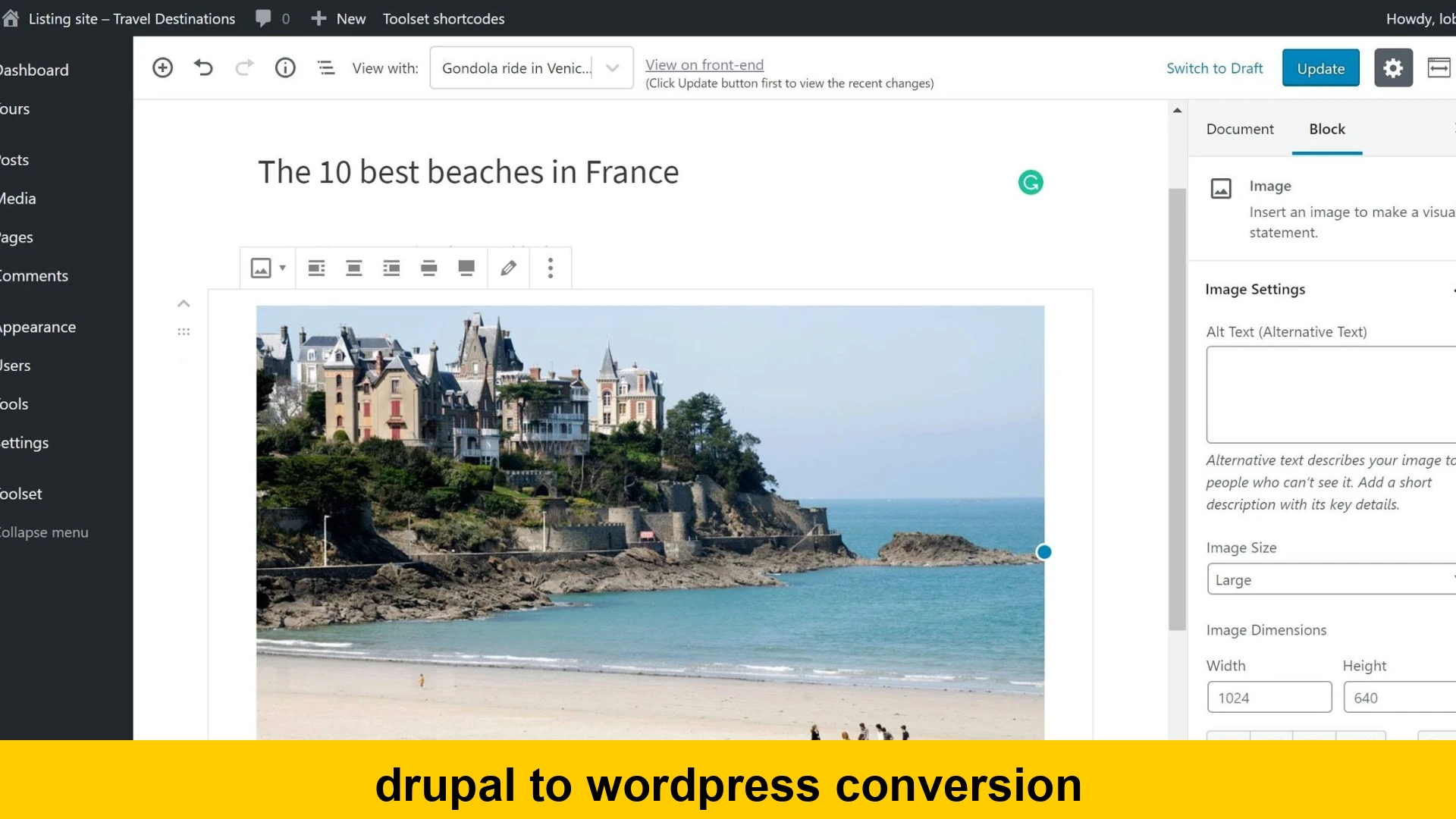
In the evolving landscape of web content management systems (CMS), businesses and individuals often find themselves at a crossroads, evaluating whether their current platform still aligns with their long-term goals. For many, this journey leads to considering a Drupal to WordPress conversion. Both Drupal and WordPress are powerful, open-source CMS platforms, each with its unique strengths. Drupal is renowned for its robust architecture, security, and scalability, making it a preferred choice for complex, enterprise-level applications. WordPress, on the other hand, dominates the web with its unparalleled ease of use, vast ecosystem of plugins, and flexible themes, appealing to everything from personal blogs to e-commerce stores and corporate websites.
The decision to undertake a Drupal to WordPress conversion is often driven by a desire for greater flexibility, a more intuitive content management experience, or access to a broader community and more affordable development resources. This comprehensive guide aims to demystify the process of migrating a Drupal site to WordPress, offering a step-by-step approach to ensure a smooth transition. We will explore the critical planning stages, various migration methods, essential tools, and crucial post-migration considerations, helping you navigate this significant website replatforming with confidence.
Why Consider a Drupal to WordPress Conversion?
While Drupal is a powerhouse for highly customized and secure applications, several compelling reasons lead users to switch from Drupal to WordPress:
- Ease of Use: WordPress is celebrated for its intuitive user interface, making it significantly easier for content creators and non-technical staff to manage content, design pages, and update the website without requiring developer intervention. This dramatically reduces the learning curve compared to Drupal.
- Extensive Plugin Ecosystem: The WordPress plugin directory boasts over 60,000 free plugins, alongside countless premium options. This rich selection offers ready-made solutions for virtually any functionality imaginable – from SEO and security to e-commerce and contact forms – often without needing custom code. Drupal’s module ecosystem, while powerful, is smaller and often requires more technical expertise to implement.
- Vast Community Support: WordPress has the largest CMS community globally. This translates to abundant tutorials, forums, developers, and resources readily available to help troubleshoot issues and learn best practices. This robust support system can be a significant advantage, particularly for those looking to migrate Drupal site to WordPress.
- Cost-Effectiveness: Due to its widespread adoption and user-friendliness, the cost of developing, maintaining, and finding talent for WordPress projects is generally lower than for Drupal. Themes and plugins are often more accessible and affordable, contributing to a lower total cost of ownership.
- Flexibility and Scalability: While Drupal excels at large, complex systems, WordPress has evolved significantly to handle diverse needs, from simple blogs to complex enterprise solutions, e-commerce platforms, and sophisticated membership sites, thanks to its modular architecture and powerful plugins.
- Faster Development Cycle: With a plethora of ready-to-use themes and plugins, building and launching a WordPress site can often be significantly faster than developing a comparable site on Drupal, which often involves more custom coding.
Understanding the Scope: Drupal vs. WordPress for Migration
Before embarking on your Drupal to WordPress conversion, it’s essential to understand the fundamental differences between the two platforms. Drupal is built on a robust, structured content architecture, utilizing entities, fields, and views to organize data. WordPress, while also structured, traditionally centers around posts and pages, though custom post types and custom fields have broadened its capabilities significantly.
When you move website from Drupal to WordPress, you’re not just moving files; you’re often translating content structures, user roles, and functionalities from one paradigm to another. This means:
- Content Types: Drupal’s highly configurable content types (e.g., Article, Basic Page, Product, Event) need to be mapped to WordPress’s Posts, Pages, or new Custom Post Types.
- Fields: Drupal’s extensive field system for content types will need corresponding custom fields in WordPress, often managed via plugins like Advanced Custom Fields (ACF).
- Taxonomies: Drupal’s vocabularies and terms (categories, tags) typically map well to WordPress’s built-in categories and tags, or custom taxonomies.
- Modules vs. Plugins: Drupal modules provide specific functionalities, which will need to be replaced with equivalent WordPress plugins or custom code.
- Theming: Drupal themes and their render arrays are fundamentally different from WordPress themes, which rely on PHP templates and the WordPress loop. A full theme redesign or careful recreation is usually necessary.
Recognizing these differences will help you formulate a realistic plan and set proper expectations for your Drupal wordpress migration guide.
Pre-Migration Checklist: Essential Steps Before You Begin
A successful Drupal to WordPress conversion begins with meticulous planning. Skipping these crucial preparatory steps can lead to unforeseen complications and delays.
1. Conduct a Comprehensive Website Audit and Content Inventory
Before you even think about moving data, thoroughly analyze your existing Drupal site. Document all content types, nodes, taxonomy terms, users, comments, media assets, custom fields, and any unique functionalities (e.g., e-commerce, forums, specific integrations). Identify:
- What content is essential and needs to be migrated?
- What content is outdated or redundant and can be archived or discarded?
- What custom functionalities are critical and need WordPress equivalents?
- Map your existing Drupal URLs to your desired new WordPress URL structure. This is vital for maintaining SEO during the website platform conversion.
2. Back Up Your Entire Drupal Site
This cannot be stressed enough. Before making any changes or initiating the migration, create a full backup of your Drupal database and all website files. This ensures you have a fail-safe copy to revert to if anything goes wrong during the conversion process. Use Drupal’s backup modules or your hosting provider’s tools for this.
3. Choose Your WordPress Hosting and Domain
Select a reliable web hosting provider that meets WordPress’s technical requirements (PHP 7.4+, MySQL 5.6+ or MariaDB 10.1+). Consider managed WordPress hosting for optimized performance and security. Decide on your domain strategy: will you use the same domain, or a new one? If using the same, plan for a temporary staging environment.
4. Install WordPress on a Staging Environment
Never perform a migration directly on your live production site. Set up a fresh WordPress installation on a staging subdomain or a local development environment. This allows you to test the conversion process thoroughly without impacting your live Drupal site.
5. Plan Your WordPress Theme and Plugin Stack
Research WordPress themes that can replicate the design and layout of your current Drupal site, or choose a new design that better suits your brand. Identify necessary plugins to replace Drupal module functionalities, such as SEO plugins (e.g., Yoast SEO, Rank Math), security (Wordfence, Sucuri), caching (WP Super Cache, WP Rocket), forms (Contact Form 7, WPForms), and custom field management (ACF).
Migration Methods for Drupal to WordPress
There are several approaches to performing a Drupal to WordPress conversion, ranging from fully manual to highly automated. The best method depends on the complexity of your Drupal site, your technical expertise, and your budget.
1. Manual Migration (Best for Small Sites or Specific Content)
A manual migration involves extracting content from Drupal and manually recreating it in WordPress. This method offers the most control but is labor-intensive and prone to errors for larger sites.
- Content Export/Import: You can export Drupal database tables containing posts, pages, and taxonomy terms (e.g., via phpMyAdmin). Then, you would manually paste this content into WordPress or use a tool like WP All Import to map and import CSV/XML files.
- Media Transfer: Manually download all media files (images, documents) from Drupal’s file system (e.g.,
/sites/default/files) and upload them to WordPress’s media library via FTP or the WordPress media uploader. - Functionality Recreation: Manually re-create menus, user accounts, and any custom functionalities using WordPress’s built-in features or equivalent plugins.
This approach is typically only recommended for very small sites with minimal content and custom features.
2. Plugin/Tool-Assisted Migration (Recommended for Most Sites)
For a more efficient and less error-prone migration, especially when looking for an easy Drupal to WordPress conversion tutorial, specialized plugins and tools can automate much of the content transfer process. These are often the best way to move Drupal content to WordPress.
- FG Drupal to WordPress Plugin: This is one of the most popular and effective solutions for migrating content from Drupal to WordPress. It directly connects to your Drupal database and imports posts, pages, custom post types, tags, categories, users, and even media files, trying to preserve SEO metadata and internal links.
Steps with FG Drupal to WordPress:
- Install and activate the FG Drupal to WordPress plugin on your new WordPress site.
- Navigate to Tools -> Import -> Drupal.
- Enter your Drupal database credentials (hostname, database name, username, password). Ensure your WordPress server can connect to your Drupal database remotely (you might need to enable remote access on your Drupal hosting or copy the Drupal database to the WordPress server if possible).
- Configure import settings: specify what content types to import, how to handle attachments (media files), and whether to keep original IDs or authors.
- Run the import. The plugin will attempt to import all selected content and media.
Example of simplified database connection parameters (not a full script):
// Drupal Database Connection Details Hostname: localhost Database Name: drupal_database_name Username: drupal_user Password: your_drupal_password - WP All Import/Export: For highly customized Drupal sites with complex custom fields or relationships, you might need a more flexible solution. This involves exporting content from Drupal into CSV or XML files (e.g., using Drupal’s Views Data Export module or phpMyAdmin) and then using WP All Import to map and import these files into WordPress.
This method offers granular control over how each piece of data is mapped to WordPress fields (including custom fields managed by ACF) but requires careful preparation of your export files.
3. Professional Migration Services (For Complex or Large-Scale Projects)
If your Drupal site is very large, highly customized, or if you lack the technical expertise and time to manage the migration yourself, hiring a professional web development agency specializing in CMS migrations is often the best investment. They can handle all aspects of the website replatforming, including custom development, data mapping, and post-migration optimization, ensuring you convert Drupal 7 to WordPress without losing data or functionality.
Step-by-Step Guide: The Conversion Process
This detailed guide walks you through the practical steps involved in a Drupal to WordPress conversion, helping you understand how long does it take to migrate Drupal to WordPress and what’s involved.
1. Set Up Your WordPress Environment
Assuming you have a fresh WordPress installation on your staging site:
- Configure Basic Settings: Go to Settings > General to set your site title, tagline, time zone.
- Set Permalinks: Navigate to Settings > Permalinks. For SEO, choose a structure that is as close as possible to your Drupal URL structure, ideally ‘Post Name’. This will be critical for setting up 301 redirects later.
- Install Essential Plugins: Install your chosen SEO, security, caching, and any custom field management plugins (e.g., Advanced Custom Fields). If using a migration plugin like FG Drupal to WordPress, install it now.
2. Import Content (Posts, Pages, Custom Post Types)
This is the core of your migration. We’ll focus on the FG Drupal to WordPress plugin as a common solution for a step-by-step guide Drupal to WordPress migration.
- Prepare Drupal Database Access: Ensure your WordPress server can connect to your Drupal database. You might need to add your WordPress server’s IP address to your Drupal host’s whitelist or temporarily move your Drupal database backup to the WordPress server environment if remote access isn’t feasible.
- Run the FG Drupal to WordPress Plugin: Follow the plugin’s instructions to connect to your Drupal database and configure the import settings. Pay close attention to mapping Drupal content types to WordPress post types (e.g., Drupal ‘Article’ to WordPress ‘Post’, Drupal ‘Basic page’ to WordPress ‘Page’).
- Review Imported Content: After the import, thoroughly check a sample of imported posts and pages. Look for correct titles, content, images, categories, tags, and authors. Ensure formatting is preserved.
3. Migrate Media Files
The FG Drupal to WordPress plugin usually handles media migration by downloading files from your Drupal site and importing them into your WordPress media library. If it doesn’t, or if you’re doing a manual import:
- Download Drupal Media: Access your Drupal site’s files via FTP/SFTP. Download the entire
sites/default/filesdirectory (or wherever your media is stored). - Upload to WordPress: Upload these files to your WordPress
wp-content/uploads/directory. Maintain the original folder structure if possible, as this can help with automatic path recognition. - Update Database Paths: If media paths are still pointing to the old Drupal URLs in your WordPress content, you’ll need to update them. Use a search-and-replace plugin like Better Search Replace or a database query tool to update all instances of
/sites/default/files/to/wp-content/uploads/or your new media URL structure.
4. Recreate Navigation Menus
WordPress doesn’t automatically import Drupal menus. You’ll need to manually recreate them in your WordPress dashboard under Appearance > Menus. Link to your newly imported pages and posts.
5. Reimplement Functionality (Forms, E-commerce, etc.)
This step often requires the most custom work or plugin research:
- Forms: Convert Drupal Webforms or Contact forms to WordPress equivalents like Contact Form 7, WPForms, or Gravity Forms.
- E-commerce: If you had Drupal Commerce, you’ll likely migrate to WooCommerce. This is a complex process often requiring dedicated migration tools or professional help to transfer products, orders, and customer data.
- Other Custom Modules: Identify WordPress plugins that offer similar functionality. If no direct plugin exists, custom development might be required.
6. Design and Theming
Install and activate your chosen WordPress theme. Customize it using the WordPress Customizer, page builders (like Elementor or Beaver Builder), or custom CSS to match the aesthetic and branding of your old Drupal site or to implement a new design. Ensure the site is fully responsive across all devices.
7. SEO Considerations Post-Migration (Crucial for Ranking)
This is arguably one of the most critical steps to avoid losing search engine rankings after your Drupal to WordPress conversion.
- Set Up 301 Redirects: Implement permanent (301) redirects from your old Drupal URLs to your new WordPress URLs. This tells search engines that your content has permanently moved and passes on SEO authority. You can do this in your
.htaccessfile (for Apache servers) or using a redirect plugin in WordPress.Example .htaccess redirects:
# Redirect specific old Drupal path to new WordPress path
Redirect 301 /old-drupal-article-path /new-wordpress-post-path

# Redirect old Drupal node IDs to WordPress posts (if applicable)
# Ensure your WordPress permalink structure for posts is /blog/%post_id% or similar
# RedirectMatch 301 ^/node/(d+)$ /blog/?p=$1

# Redirect all old image paths (adjust regex for your specific structure)
RedirectMatch 301 ^/sites/default/files/(.*)$ /wp-content/uploads/$1
For a large number of redirects, use a spreadsheet to map URLs and generate the
.htaccessrules, or use a redirect management plugin like Redirection in WordPress. - Generate and Submit XML Sitemaps: Use your SEO plugin (Yoast SEO, Rank Math) to generate a new XML sitemap and submit it to Google Search Console and Bing Webmaster Tools.
- Update Google Analytics and Search Console: Ensure your tracking codes are correctly installed on the new WordPress site. In Google Search Console, perform a “Change of Address” if you’ve changed your primary domain.
Post-Migration Checklist & Testing
Once your content is migrated, the work isn’t over. Thorough testing is paramount to ensure your new WordPress site functions flawlessly before going live.
- Thorough Content Review: Manually check a significant portion of your pages and posts. Verify text, images, videos, internal links, and external links.
- Functionality Testing: Test all forms, search functionality, comments, user registration/login, e-commerce checkout process (if applicable), and any other interactive elements.
- Responsive Design Check: Ensure your site looks and functions correctly across various devices (desktops, tablets, smartphones) and browsers (Chrome, Firefox, Safari, Edge).
- SEO Audit: Use tools like Screaming Frog, Ahrefs, or Google Search Console to check for broken links, redirect chains, crawl errors, and proper indexing. Verify meta titles and descriptions.
- Performance Optimization: Implement caching plugins, optimize images, and minimize CSS/JavaScript to ensure your WordPress site loads quickly. Fast loading times are crucial for user experience and SEO.
- Security Hardening: Configure your security plugins, set up strong passwords for all users, and ensure regular backups are scheduled.
It’s beneficial to have multiple people test the site from different perspectives before the final launch. For more on site moves, refer to Google’s documentation on site moves.
Common Challenges and Solutions During Drupal to WordPress Conversion
While the process can be streamlined, you might encounter specific challenges:
- Complex Drupal Content Types: If your Drupal site heavily relies on custom content types with intricate field relationships, replicating this exactly in WordPress might require custom development or a sophisticated use of plugins like ACF and CPT UI.
- Large Media Libraries: Migrating thousands of media files can be time-consuming. Ensure your hosting has sufficient resources and use tools that can handle bulk transfers efficiently.
- Custom Module Functionality: Unique functionalities built with custom Drupal modules often have no direct WordPress plugin equivalent. These may require custom plugin development in WordPress.
- SEO Link Structure: Drastically different URL structures between Drupal and WordPress can complicate 301 redirects. Careful planning and testing of redirect rules are essential.
Addressing these challenges often boils down to thorough planning, leveraging appropriate tools, and, when necessary, consulting with experienced developers who understand both Drupal and WordPress.
Benefits of Migrating from Drupal to WordPress
Beyond the initial effort, the long-term advantages of a successful Drupal to WordPress conversion are significant:
- Simplified Content Management: Empower your team with an intuitive interface, reducing reliance on developers for routine updates.
- Access to a Rich Ecosystem: Tap into an unparalleled array of plugins for SEO, security, e-commerce, marketing, and more, enabling rapid feature implementation.
- Lower Maintenance Costs: Generally, WordPress development and maintenance are more affordable due to its popularity and simpler architecture.
- Enhanced Flexibility: Easily adapt your site’s design and functionality to future needs with WordPress’s vast theme and plugin options.
- Improved Scalability: Modern WordPress, especially with optimized hosting and proper setup, can scale to meet considerable traffic and content demands.
For further insights into the benefits and usage of WordPress, you can explore resources like WPBeginner.
Conclusion
A Drupal to WordPress conversion is a significant undertaking that, when executed correctly, can unlock numerous benefits for your website. It’s a strategic move towards a more flexible, user-friendly, and cost-effective platform. While the journey from Drupal to WordPress involves careful planning, technical considerations, and thorough testing, the rewards in terms of ease of content management, access to a vast ecosystem of tools, and a thriving community are substantial.
By following this comprehensive Drupal wordpress migration guide – from meticulous pre-migration audits and strategic tool selection to diligent content migration and crucial post-launch SEO considerations – you can ensure a smooth transition. Remember, the goal is not just to switch platforms but to enhance your online presence and empower your team. With a well-thought-out strategy, your move from Drupal to WordPress will set a strong foundation for future growth and success.