Introduction to Avoiding Early WordPress Hurdles
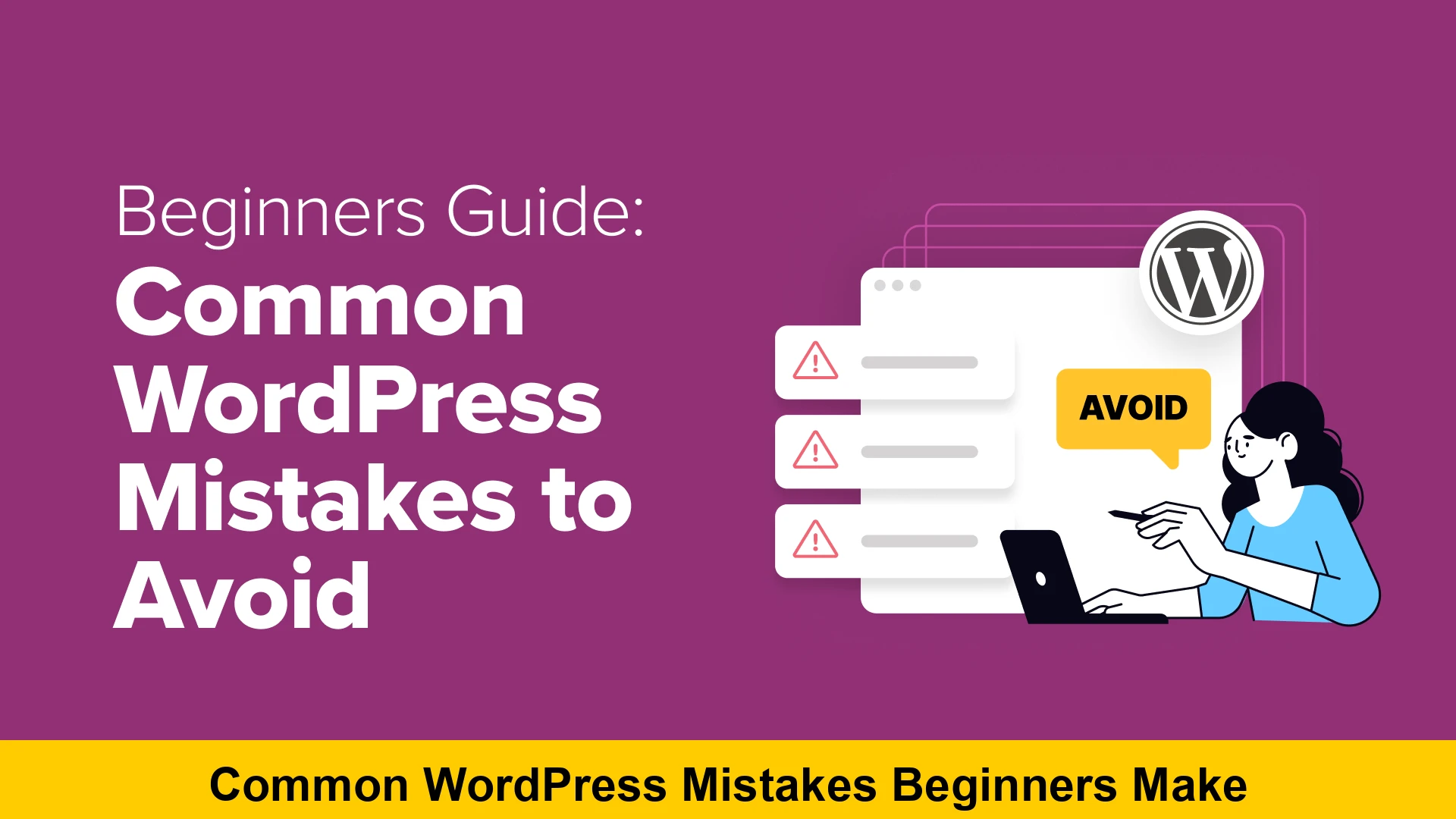
Starting a new blog or business website with WordPress is an exciting journey. As the most popular Content Management System (CMS) in the world, powering over 40% of the internet, WordPress offers unparalleled flexibility and power. However, that power comes with a learning curve. Many new users fall into the same traps, leading to slow performance, security vulnerabilities, or poor search engine rankings. In this comprehensive guide, we will dive deep into the common wordpress mistakes to avoid for beginners and provide actionable solutions to ensure your site is built on a solid foundation.
Whether you are a hobbyist blogger or an aspiring entrepreneur, understanding wordpress troubleshooting for beginners is essential. By identifying these pitfalls early, you can save dozens of hours of frustration. Let’s explore the most common wordpress mistakes new bloggers make and how you can sidestep them to create a high-performing, secure website.
1. Choosing the Wrong Web Hosting Provider
One of the first wordpress site setup mistakes is prioritizing price over performance. While ‘cheap’ hosting for $1.99 a month sounds tempting, it often results in frequent downtime, slow loading speeds, and poor customer support. Your host is the foundation of your site; if the foundation is weak, your SEO and user experience will suffer.
Slow hosting is a primary reason for why is my wordpress site not working for beginners. Search engines like Google use page speed as a ranking factor. If your server takes three seconds just to respond, you are already behind the competition. Look for hosts that offer managed WordPress hosting, server-side caching, and excellent uptime records. For more technical insights on web standards, you can visit the World Wide Web Consortium (W3C).
2. Leaving the Default ‘Admin’ Username
Security is a major concern for any website owner. A frequent beginner wordpress guide tips highlight is the danger of using the default ‘admin’ username. Brute-force attackers know that ‘admin’ is the default setting for many legacy WordPress installations. By keeping it, you have already given hackers 50% of the credentials they need to break into your site.
To fix this, create a new user account with ‘Administrator’ privileges and a unique name, then delete the original ‘admin’ user. This simple step is part of an easy ways to fix wordpress configuration errors regarding security. Always pair a unique username with a strong password and two-factor authentication.
3. Ignoring Regular Site Backups
Imagine spending months creating content only to lose it all because of a server crash or a botched update. Not having a backup strategy is one of the most critical wordpress website mistakes that hurt your seo and your sanity. Beginners often assume their host handles backups, but these are often infrequent or unreliable.
You should use a dedicated backup plugin like UpdraftPlus or BlogVault. These tools allow you to schedule automatic backups and store them in remote locations like Google Drive or Dropbox. This is a core part of fixing common wordpress errors; if something breaks, you can simply ‘undo’ the damage by restoring a previous version.
4. Failing to Change the Default Permalink Structure
By default, WordPress might use a URL structure like yourdomain.com/?p=123. This is terrible for SEO and user experience. A beginner guide to avoiding wordpress mistakes must include an optimization of your permalinks. Search engines need to see keywords in your URL to understand what your page is about.
Navigate to Settings > Permalinks and select the ‘Post Name’ option. This changes your URLs to a readable format like yourdomain.com/common-wordpress-mistakes. This simple tweak is a major win for your wordpress site setup mistakes checklist.
5. Using Too Many (or Poorly Coded) Plugins
The beauty of WordPress is its plugin ecosystem, but it is also a double-edged sword. Beginners often install a plugin for every minor feature, leading to ‘plugin bloat.’ Every plugin adds code that your server must process. Too many plugins—especially those that are poorly coded—can slow down your site significantly.
When fixing common wordpress errors related to speed, the first step is often deactivating unnecessary plugins. Always check for the last update date and user reviews before installing a new one. Quality over quantity is the golden rule here.
6. Forgetting to Optimize Images
High-resolution images look great, but if they are 5MB each, they will kill your site’s performance. Many beginners upload images directly from their camera or stock photo sites without resizing them. This is one of the common wordpress theme and plugin mistakes—or rather, a content management mistake—that leads to high bounce rates.
Use tools like TinyPNG or a WordPress plugin like Smush to compress images without losing quality. Additionally, always fill out the ‘Alt Text’ for your images to help search engines index them, which is a vital part of how to fix common wordpress errors for beginners regarding SEO visibility.
7. Not Setting Up a Child Theme
If you want to customize your site’s code, never do it directly in the main theme files. Why? Because when the theme developer releases an update, all your changes will be overwritten. This is a classic wordpress troubleshooting for beginners scenario where a user ‘loses’ their design overnight.
A child theme allows you to make modifications that stay intact even when the parent theme is updated. Here is a basic example of what a child theme’s style.css file looks like:
/
 Theme Name:   My Custom Child Theme
 Template:     twentytwentyfour
 Author:       Your Name
/

@import url("../twentytwentyfour/style.css");

/ Your custom CSS goes here /
8. Keeping the ‘Uncategorized’ Category
WordPress comes with a default category called ‘Uncategorized.’ If you don’t assign a category to your post, it defaults to this. Not only does this look unprofessional, but it also provides zero SEO value. Part of your wordpress site setup mistakes audit should be renaming this default category to something relevant to your niche or ensuring you always select a specific category.
9. Neglecting Site Updates
WordPress frequently releases updates for its core software, themes, and plugins. These updates often include critical security patches and performance improvements. Ignoring these notifications makes your site a sitting duck for hackers. This is perhaps the most dangerous of the common wordpress mistakes to avoid for beginners.
Before updating, ensure you have a recent backup (as discussed in point 3). You can check for updates by going to Dashboard > Updates in your WordPress admin area. For official documentation on the latest releases, refer to the WordPress Support Documentation.
10. Not Using Google Search Console
Many beginners focus solely on how their site looks and forget about how Google sees it. Not connecting your site to Google Search Console is a major oversight. This free tool tells you which keywords you are ranking for, which pages have errors, and if there are any manual penalties on your site.
Understanding how to fix common wordpress errors for beginners becomes much easier when Google literally sends you an email telling you what is wrong. You can set this up at the Google Search Console portal.
11. Leaving Sample Content Live
Every WordPress installation comes with a “Hello World!” post and a “Sample Page.” Many beginners forget to delete these. This signals to both users and search engines that the site is unfinished or unprofessional. This falls under wordpress website mistakes that hurt your seo because it creates thin, duplicate content that serves no purpose. Always search for and delete these dummy posts before launching.
12. Ignoring Mobile Users
With more than 50% of web traffic coming from mobile devices, your site must be responsive. Some beginners choose themes that look great on a desktop but break on a smartphone. This is a significant beginner wordpress guide tips focus: always test your site on multiple devices. If your site isn’t mobile-friendly, Google will penalize your rankings in mobile search results.
Summary of Best Practices
- Always use a reputable hosting provider.
- Implement a robust backup and security strategy.
- Keep your plugins and themes to a necessary minimum.
- Optimize your media files and URL structures for speed and SEO.
- Monitor your site’s health via Google Search Console.
Conclusion
Building a website is a marathon, not a sprint. By avoiding these common wordpress mistakes to avoid for beginners, you are setting yourself up for long-term success. While fixing common wordpress errors might seem daunting at first, most of these issues are easily preventable with a little bit of foresight and the right beginner wordpress guide tips.
Stay proactive with your updates, keep your site lean, and always keep the user experience at the forefront of your decisions. WordPress is a powerful tool—make sure you’re using it to its full potential by steering clear of these common pitfalls. Now that you know why is my wordpress site not working for beginners often comes down to these simple settings, you can confidently build a site that stands the test of time.