
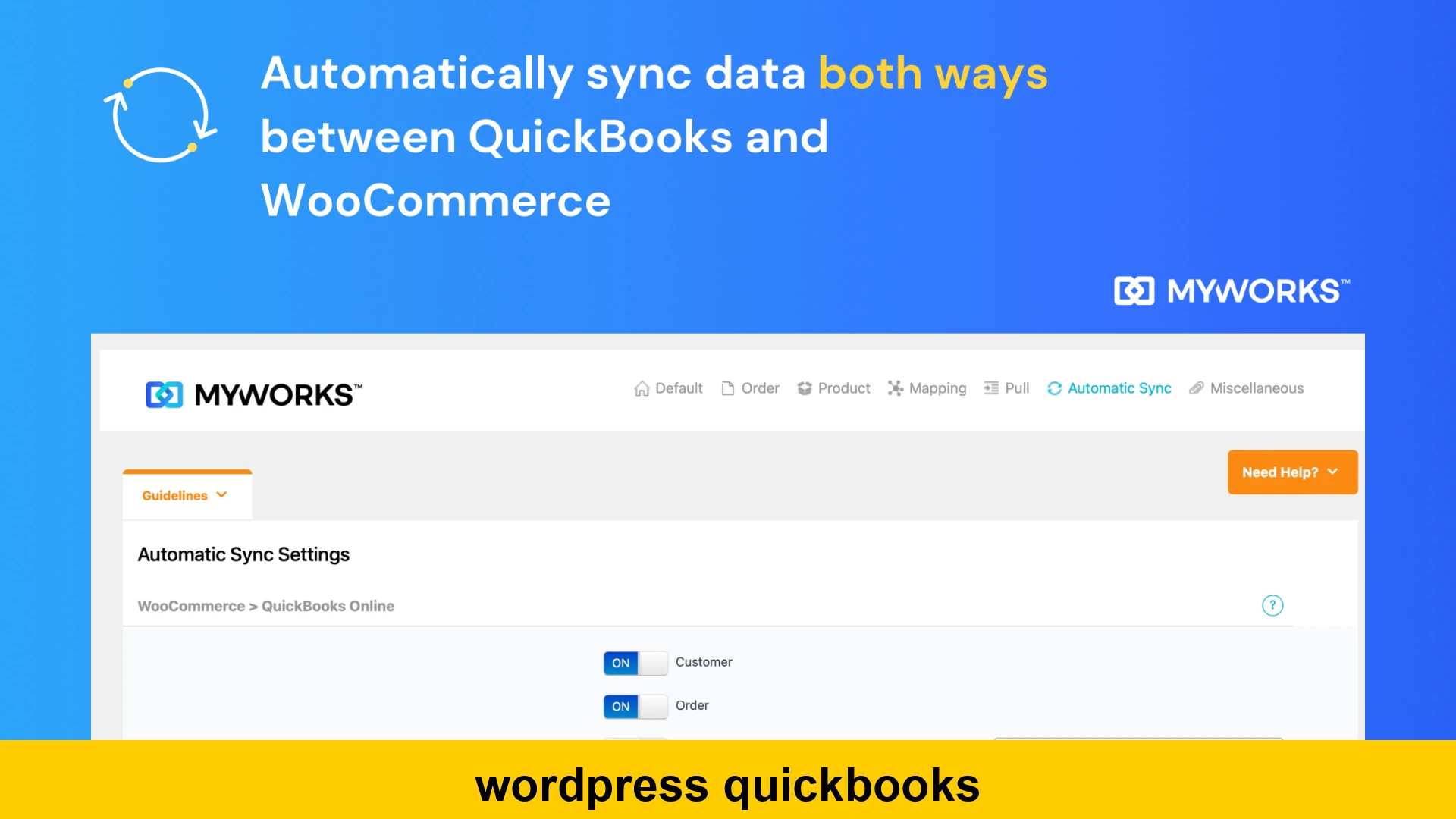
WordPress QuickBooks: Streamline Your Business Accounting
In today’s fast-paced digital economy, managing your business efficiently is paramount. For countless small and medium-sized enterprises, WordPress serves as the backbone of their online presence, powering everything from informational websites to robust e-commerce stores. Simultaneously, QuickBooks has established itself as the go-to accounting software, helping businesses track finances, manage payroll, and maintain a clear financial picture. While both platforms are incredibly powerful on their own, the real magic happens when you bring them together. Integrating WordPress with QuickBooks can transform your operational efficiency, eliminate manual data entry, and provide a unified view of your business’s health. This comprehensive guide will explore the myriad benefits, methods, and best practices for creating a seamless WordPress QuickBooks integration, ensuring your business runs smoother and smarter.
Why Connecting WordPress to QuickBooks is a Game-Changer for Your Business
The decision to link WordPress and QuickBooks isn’t just about convenience; it’s a strategic move that can significantly impact your business’s bottom line and growth trajectory. Manual data entry, a common practice when systems are siloed, is not only time-consuming but also prone to errors. These errors can lead to inaccurate financial reports, compliance issues, and flawed business decisions. By automating data flow between your WordPress site and QuickBooks, you unlock a host of advantages:
- Enhanced Efficiency: Eliminate the need to manually transfer sales orders, customer information, or inventory updates from your WordPress site into QuickBooks. This frees up valuable staff time, allowing them to focus on more strategic tasks rather than repetitive administrative work.
- Improved Accuracy: Automated data synchronization drastically reduces human error. Every transaction, customer detail, and product update is accurately recorded in both systems, ensuring your financial records are always precise and reliable.
- Real-time Financial Insights: With data flowing seamlessly, you gain immediate access to up-to-date financial reports, sales figures, and inventory levels. This real-time visibility empowers you to make informed decisions swiftly, respond to market changes, and identify growth opportunities.
- Better Inventory Management: For e-commerce businesses, syncing WordPress inventory with QuickBooks is crucial. When a product is sold on your WordPress store, the stock level is automatically updated in QuickBooks, preventing overselling and ensuring accurate inventory valuation.
- Streamlined Customer Management: New customer registrations or updates in WordPress can be automatically pushed to QuickBooks, ensuring your customer records are consistent across all platforms. This aids in personalized marketing, customer service, and accurate invoicing.
- Simplified Tax Preparation: Accurate and comprehensive financial data is a cornerstone of hassle-free tax preparation. With all transactions correctly categorized and recorded, preparing for tax season becomes significantly less daunting.
Common Use Cases for WordPress QuickBooks Integration
The versatility of WordPress means it serves a wide array of business types, each with unique integration needs. Here are some of the most common scenarios where integrating WordPress with QuickBooks provides immense value:
WooCommerce and E-commerce Stores
Perhaps the most prevalent use case, businesses running e-commerce stores on WooCommerce (the most popular e-commerce plugin for WordPress) benefit immensely from a QuickBooks integration. Key data points that are typically synced include:
- Sales Orders and Invoices: Automatically create invoices or sales receipts in QuickBooks for every order placed on your WooCommerce store.
- Customer Data: Sync new customer registrations or update existing customer profiles between WooCommerce and QuickBooks.
- Product Data and Inventory: Keep product information (SKUs, prices) consistent and automatically adjust inventory levels in QuickBooks when sales occur or new stock is added.
- Payments and Refunds: Reconcile payments received via WooCommerce payment gateways and process refunds directly in QuickBooks.
Membership Sites and Subscriptions
For businesses offering subscription-based services or membership access through WordPress plugins like Paid Memberships Pro or WooCommerce Subscriptions, synchronizing recurring revenue with QuickBooks is critical. This ensures accurate billing, revenue recognition, and subscriber management.
CRM and Lead Management
If your WordPress site uses a CRM plugin or collects leads via forms (e.g., Contact Form 7, Gravity Forms), you might want to automate QuickBooks entries from WordPress forms. This could involve creating new customer records for qualified leads or automatically generating invoices for services agreed upon through a form submission.
Service-Based Businesses and Project Management
Freelancers, consultants, and agencies often use WordPress to showcase their portfolio and manage client interactions. Integrating with QuickBooks can help them automatically generate invoices based on project milestones, track billable hours, and manage client payments more effectively.
Methods to Integrate WordPress with QuickBooks
There are several approaches to achieve QuickBooks integration for WordPress, ranging from off-the-shelf solutions to custom development. The best method for your business will depend on your budget, technical expertise, and specific data synchronization needs.
1. WordPress Plugins and Extensions
This is often the most accessible and popular method, especially for small to medium-sized businesses. A dedicated QuickBooks plugin for WordPress acts as a bridge, allowing your WordPress site to communicate directly with your QuickBooks Online or Desktop account.
- Pros: User-friendly, typically requires no coding, relatively quick setup, often includes pre-built features for common use cases (e.g., WooCommerce integration).
- Cons: May not cover highly specific or unique business logic, can incur subscription costs, performance might depend on plugin quality.
Many plugins offer features like two-way sync, customizable data mapping, and error logging. When evaluating a plugin, look for robust support, regular updates, and positive reviews. Some popular examples in this category include MyWorks Sync for QuickBooks, WP ERP, and Connect to QuickBooks by OneSaas (though OneSaas is an iPaaS, it often works via plugins).
Example: Conceptual Data Flow via a Plugin
Imagine a customer places an order on your WooCommerce store. A well-configured plugin would intercept this event and translate the order data into a format QuickBooks understands.
// WordPress (WooCommerce) Order Data Example
{
    "order_id": 12345,
    "customer": {
        "id": 6789,
        "first_name": "Jane",
        "last_name": "Doe",
        "email": "[email protected]"
    },
    "items": [
        {
            "product_id": 101,
            "name": "Product A",
            "quantity": 2,
            "price": 50.00
        },
        {
            "product_id": 102,
            "name": "Product B",
            "quantity": 1,
            "price": 75.00
        }
    ],
    "total": 175.00,
    "currency": "USD",
    "status": "completed"
}

// How a plugin might map this to a QuickBooks Sales Receipt (simplified)
{
    "Line": [
        {
            "Amount": 100.00,
            "DetailType": "SalesItemLineDetail",
            "SalesItemLineDetail": {
                "ItemRef": {
                    "value": "WooCommerce Product A SKU", // Mapped from WordPress product ID/SKU
                    "name": "Product A"
                },
                "UnitPrice": 50.00,
                "Qty": 2
            }
        },
        {
            "Amount": 75.00,
            "DetailType": "SalesItemLineDetail",
            "SalesItemLineDetail": {
                "ItemRef": {
                    "value": "WooCommerce Product B SKU",
                    "name": "Product B"
                },
                "UnitPrice": 75.00,
                "Qty": 1
            }
        }
    ],
    "CustomerRef": {
        "value": "QuickBooks Customer ID for Jane Doe"
    },
    "TxnDate": "2023-10-27",
    "PrivateNote": "Order from WordPress #12345"
}
2. Integration Platform as a Service (iPaaS) Solutions
iPaaS platforms like Zapier, Make (formerly Integromat), and Workato provide a powerful and flexible way to connect WordPress and QuickBooks, along with hundreds of other applications. These platforms allow you to create ‘zaps’ or ‘scenarios’ that define triggers and actions between different apps.
- Pros: Highly customizable workflows, can connect many different applications, often has pre-built connectors for popular WordPress plugins (e.g., Gravity Forms, WooCommerce). No coding required for basic integrations.
- Cons: Can become complex for intricate workflows, subscription costs can scale with usage, might have a steeper learning curve for advanced configurations.
For example, you could set up a Zapier integration where a new entry in a Gravity Form on your WordPress site triggers the creation of a new customer in QuickBooks Online, or a new WooCommerce order creates a sales receipt.
3. Custom API Development
For businesses with highly specific needs, complex workflows, or large transaction volumes, custom API development offers the most control and flexibility. This involves writing custom code (often in PHP, leveraging WordPress’s REST API and QuickBooks’ API) to manage the data exchange.
- Pros: Tailored exactly to your business logic, maximum control over data flow and synchronization, highly scalable.
- Cons: Requires significant development expertise and resources, higher upfront cost, ongoing maintenance and updates are your responsibility.
This method is suitable for businesses that have unique requirements not met by existing plugins or iPaaS solutions, or those with dedicated in-house development teams.
Example: A Glimpse into Custom API Integration Logic
A custom solution would typically involve listening to WordPress hooks (actions/filters) and then making HTTP requests to the QuickBooks API. Here’s a conceptual PHP snippet showing how you might interact with the QuickBooks API after a new order in WooCommerce (simplified and illustrative):
 $order->get_billing_first_name() . ' ' . $order->get_billing_last_name(),
        'PrimaryEmailAddr' => ['Address' => $order->get_billing_email()],
        // ... more customer fields
    ];

    // Create or find customer in QuickBooks
    try {
        $qb_customer = $quickbooksApi->createOrUpdateCustomer($customer_data);
    } catch (Exception $e) {
        // Handle error: log, notify admin, etc.
        error_log("QuickBooks Customer Sync Error: " . $e->getMessage());
        return;
    }

    // Prepare sales receipt data for QuickBooks
    $line_items = [];
    foreach ($order->get_items() as $item) {
        $line_items[] = [
            'Amount' => $item->get_total(),
            'DetailType' => 'SalesItemLineDetail',
            'SalesItemLineDetail' => [
                'ItemRef' => ['value' => get_post_meta($item->get_product_id(), '_sku', true)], // Use SKU for item reference
                'UnitPrice' => $item->get_subtotal() / $item->get_quantity(),
                'Qty' => $item->get_quantity()
            ]
        ];
    }

    $sales_receipt_data = [
        'CustomerRef' => ['value' => $qb_customer->Id],
        'Line' => $line_items,
        'TxnDate' => $order->get_date_created()->format('Y-m-d'),
        'PrivateNote' => 'WooCommerce Order #' . $order->get_id()
    ];

    // Create sales receipt in QuickBooks
    try {
        $qb_sales_receipt = $quickbooksApi->createSalesReceipt($sales_receipt_data);
        // Optionally, store QuickBooks ID back in WordPress order meta
        $order->update_meta_data('_quickbooks_sales_receipt_id', $qb_sales_receipt->Id);
        $order->save();

    } catch (Exception $e) {
        // Handle error
        error_log("QuickBooks Sales Receipt Sync Error: " . $e->getMessage());
    }
}

// Hook into WooCommerce order completion
// add_action('woocommerce_order_status_completed', 'sync_new_woocommerce_order_to_quickbooks');

?>
This code snippet illustrates the basic logic: fetch WordPress order data, prepare it for QuickBooks, and then use an API client to send it. Error handling and robust authentication (OAuth 2.0 for QuickBooks) would be crucial in a production environment. For more information on QuickBooks API, refer to their official developer documentation.
Key Considerations for a Successful WordPress QuickBooks Sync
Before diving into any integration, careful planning and attention to detail can prevent headaches down the line. Here are essential factors to consider:
1. QuickBooks Version Compatibility
QuickBooks comes in different versions: QuickBooks Online (QBO) and QuickBooks Desktop (QBD). Most modern integration solutions are primarily built for QuickBooks Online due to its cloud-based API accessibility. If you use QuickBooks Desktop, ensure your chosen solution explicitly supports it, as it often requires a local connector application.
2. Data Mapping and Fields
One of the most critical steps is defining how data fields in WordPress map to corresponding fields in QuickBooks. For example, which WordPress user field maps to ‘Customer Display Name’ in QuickBooks? How do your WooCommerce product SKUs map to ‘Item’ fields? Mismatched fields can lead to incorrect data or synchronization failures.
3. One-Way vs. Two-Way Synchronization
- One-Way Sync: Data flows from WordPress to QuickBooks (e.g., sales orders). This is simpler but less comprehensive.
- Two-Way Sync: Data flows in both directions (e.g., inventory updates from QuickBooks to WordPress, customer updates from WordPress to QuickBooks). This offers a more unified system but is more complex to set up and maintain. Determine which data needs to be synchronized in which direction.
4. Synchronization Frequency
How often does data need to be synchronized? Instant, real-time sync is ideal for critical data like inventory, while less urgent data (e.g., new customer profiles) might be synchronized hourly or daily. Consider the impact on server resources and API call limits when setting frequency.
5. Error Handling and Logging
No integration is foolproof. What happens when a sync fails? Your chosen solution should have robust error logging and reporting capabilities, allowing you to quickly identify and resolve issues. Notifications (email, dashboard alerts) for failed syncs are invaluable.
6. Security and Authentication
Ensuring the secure transmission of sensitive financial and customer data is paramount. Verify that the integration uses secure authentication methods (like OAuth 2.0 for QuickBooks Online API) and encrypts data in transit.
7. Performance Impact
A poorly optimized integration can slow down your WordPress site or overload your QuickBooks account with API calls. Test the integration thoroughly, especially under peak load conditions, to ensure it doesn’t degrade performance.
Implementing a WordPress QuickBooks Integration: A Step-by-Step Guide
While the specifics will vary based on your chosen method, here’s a general roadmap for a successful integration:
Step 1: Define Your Needs and Goals
Before looking at solutions, clearly outline what you want the integration to achieve. What data needs to be synced? In which direction? What are the key business processes you want to automate? This will guide your choice of method and solution.
Step 2: Choose Your Integration Method and Solution
Based on your needs, budget, and technical capabilities, decide between a plugin, iPaaS, or custom development. Research available solutions thoroughly, read reviews, and check for compatibility with your specific WordPress plugins (e.g., WooCommerce, specific CRM tools).
Step 3: Prepare Both Platforms
WordPress: Ensure your WordPress site is up-to-date, secure, and has all necessary plugins installed and configured. Create a backup of your WordPress site before starting the integration process. Always use the latest stable version of WordPress for security and compatibility.
QuickBooks: Ensure your QuickBooks account is clean and well-organized. You might need to set up specific accounts, items, or classes to receive the incoming data from WordPress. For QuickBooks Online, you’ll need to create an app in the developer portal to get your API keys.
Step 4: Configure the Integration
This is where you connect the two platforms. This usually involves:
- Authentication: Connecting your WordPress site to your QuickBooks account (e.g., via OAuth 2.0 for QuickBooks Online).
- Data Mapping: Carefully map WordPress fields to QuickBooks fields. This is crucial for accuracy.
- Synchronization Rules: Define triggers (e.g., new order in WooCommerce) and actions (e.g., create sales receipt in QuickBooks). Set the synchronization frequency.
- Error Handling: Configure how the integration should handle failed syncs (e.g., retry, log, notify).
Step 5: Test Thoroughly
Do NOT go live without extensive testing. Run several test scenarios:
- Place test orders on your WordPress site and verify they appear correctly in QuickBooks.
- Update customer information in WordPress and check QuickBooks.
- If it’s two-way, make changes in QuickBooks (e.g., inventory) and confirm they reflect in WordPress.
- Test edge cases, such as refunds, cancellations, and orders with multiple items or discounts.
Step 6: Go Live and Monitor
Once testing is complete and satisfactory, activate the integration for live data. Continuously monitor the integration dashboard and error logs to catch any issues early. Be prepared to make adjustments as needed.
Advantages of WordPress QuickBooks Integration
Beyond the immediate benefits of efficiency and accuracy, a robust WordPress QuickBooks integration offers significant strategic advantages:
- Scalability: As your business grows, the automated processes can handle increased transaction volumes without a proportional increase in manual workload.
- Cost Savings: By reducing manual labor and minimizing errors, you save on operational costs and potential financial penalties from inaccuracies.
- Improved Compliance: Maintaining accurate, up-to-date financial records is fundamental for compliance with accounting standards and tax regulations.
- Better Customer Experience: Efficient order processing, accurate billing, and consistent customer data contribute to a smoother customer journey.
- Focus on Growth: By automating mundane tasks, business owners and employees can dedicate more time and energy to strategic initiatives, product development, and customer engagement, fostering growth.
Addressing Common Challenges
While the benefits are clear, setting up QuickBooks online integration for WordPress website can sometimes present challenges:
- Data Discrepancies: Ensure consistent naming conventions and data formats across both systems to prevent errors. Regular reconciliation helps catch discrepancies.
- API Limits: QuickBooks API has rate limits. High-volume sites need to ensure their integration respects these limits to avoid temporary blockages.
- Complex Customizations: If your WordPress setup is highly customized, finding an off-the-shelf solution that fits perfectly might be difficult, pushing you towards more complex iPaaS or custom development options.
- Support and Updates: Ensure your chosen plugin or iPaaS solution offers reliable support and is regularly updated to maintain compatibility with the latest versions of WordPress and QuickBooks.
The Cost of WordPress QuickBooks Integration
The cost of WordPress QuickBooks integration varies widely depending on the chosen method:
- Plugins: Can range from free (with limited features) to hundreds of dollars per year for premium versions or higher-tier subscriptions.
- iPaaS Solutions (e.g., Zapier): Often have tiered pricing based on the number of tasks (operations) performed per month, starting from free tiers for very basic usage up to hundreds of dollars for high volume.
- Custom Development: This can be the most expensive upfront, ranging from a few thousand dollars to tens of thousands, depending on complexity and developer rates. However, it offers the highest level of customization and control, potentially yielding the best long-term ROI for complex businesses.
When considering cost, always weigh it against the potential savings in time, reduction in errors, and improved decision-making that the integration provides. The return on investment (ROI) often justifies the expense.
Conclusion: Unleash the Power of Integrated WordPress and QuickBooks
Integrating WordPress with QuickBooks is no longer a luxury but a necessity for businesses aiming for efficiency, accuracy, and scalability in their financial operations. Whether you run an e-commerce store, a membership site, or a service-based business, establishing a robust WordPress QuickBooks sync will free your team from tedious manual data entry, providing them with reliable, real-time insights to drive growth. By carefully selecting the right integration method—be it a dedicated plugin, a flexible iPaaS solution, or a custom-developed API—and adhering to best practices, you can create a seamless ecosystem where your online platform and accounting software work in harmony. Embrace the power of integration and watch your business thrive with optimized workflows and clearer financial visibility.