
Introduction to WordPress Maintenance
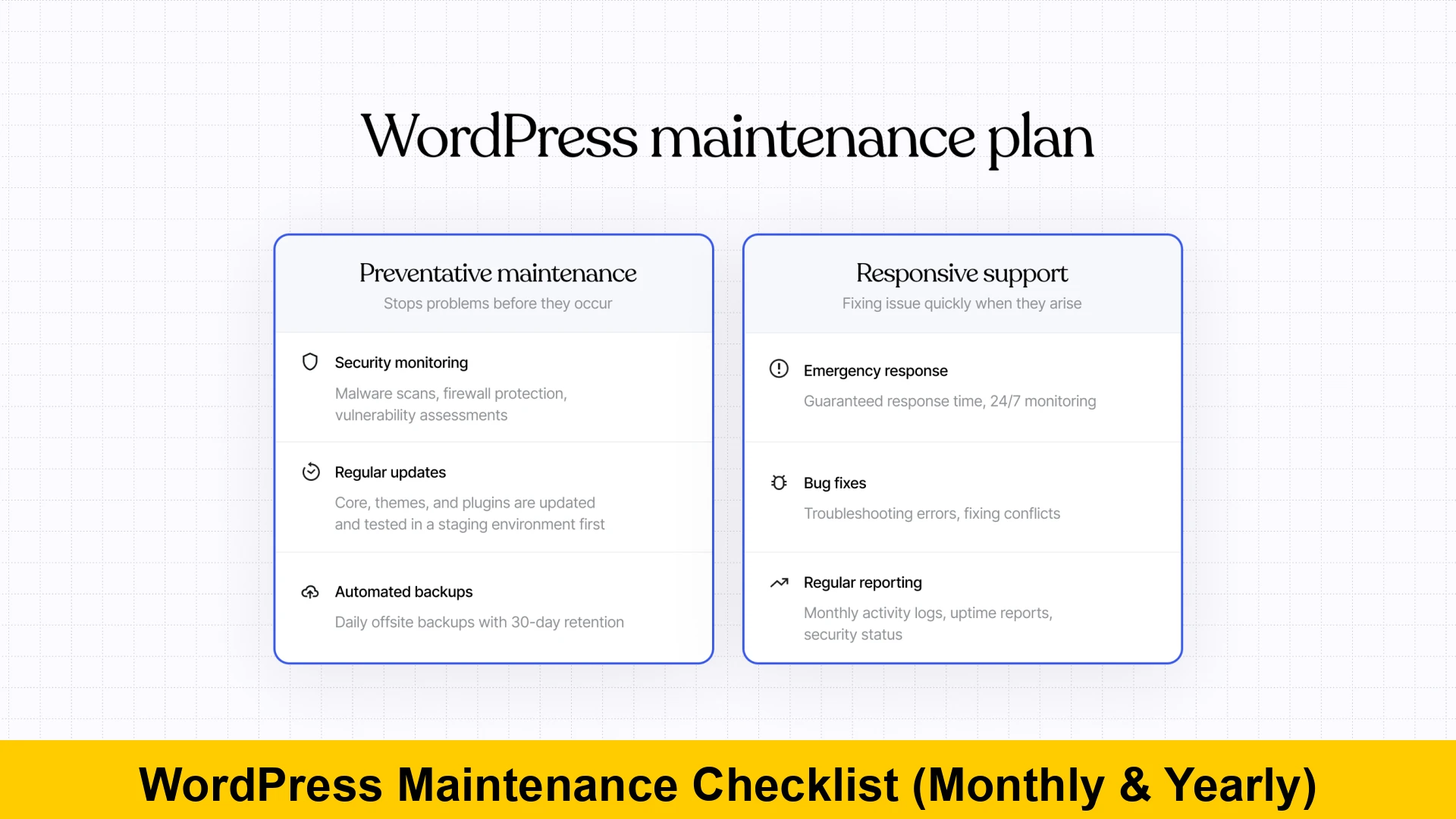
Owning a WordPress website is much like owning a car or a home; it requires consistent care to function at its peak performance. If you ignore regular maintenance, your site becomes vulnerable to security threats, experiences slower load times, and may eventually suffer from broken functionality that frustrates your users and hurts your search engine rankings. This step by step wordpress maintenance checklist for beginners is designed to provide you with a roadmap for keeping your site healthy, secure, and fast.
Many site owners make the mistake of thinking that once a site is launched, the work is done. However, WordPress is a dynamic ecosystem. Core software, plugins, and themes are updated constantly to patch security vulnerabilities and introduce new features. In this guide, we will break down the essential yearly wordpress maintenance tasks for site owners and the critical monthly wordpress maintenance tasks you cannot afford to skip. By following this wordpress maintenance checklist for small business websites, you can ensure a professional and seamless experience for your visitors.
Why Regular Maintenance is Non-Negotiable
Before we dive into the specific tasks, it is vital to understand the ‘why.’ When you learn how to perform a monthly wordpress maintenance check, you are essentially protecting your investment. A well-maintained site ranks higher in Google because search engines favor sites that are fast and error-free. Furthermore, best practices for keeping wordpress sites secure and fast involve proactive measures rather than reactive fixes after a hack has occurred.
Monthly WordPress Maintenance Tasks
Monthly tasks focus on the immediate health and performance of your site. These are the routines that prevent minor issues from snowballing into catastrophic failures.
1. Complete Site Backups
A step by step guide to backing up wordpress sites usually starts with choosing the right tool. While many hosting providers offer backups, you should always maintain your own off-site copies. Monthly backups (or more frequent if you publish daily) ensure that if your site is compromised, you can restore it to a working state within minutes. Tools like UpdraftPlus or BlogVault are excellent for automating this process.
2. Updating WordPress Plugins and Themes
Updating wordpress plugins and themes is perhaps the most critical security step. Outdated code is the primary entry point for hackers. When performing these updates, always check the compatibility of the plugin with your current version of WordPress. It is often wise to perform updates on a staging site first to ensure nothing breaks on the live version.
3. Perform a WordPress Site Health Check
WordPress includes a built-in tool that provides a wordpress site health check. You can find this under Tools > Site Health in your dashboard. It highlights critical issues, such as outdated PHP versions or missing recommended modules, and provides actionable advice on how to improve your site’s configuration.
4. Check for Broken Links
Nothing hurts user experience and SEO quite like a ‘404 Not Found’ error. Knowing how to check for broken links on wordpress regularly is key to maintaining site integrity. You can use external tools like the Google Search Console to identify crawl errors or plugins like Broken Link Checker (though be careful with plugin resource usage).
5. Optimize WordPress Performance
If you want to know how to optimize wordpress performance every month, start by analyzing your page load speeds. Use tools like GTmetrix or PageSpeed Insights. Check for large image files that need compression and ensure your caching plugins are functioning correctly. High performance leads to lower bounce rates and higher conversion levels.
6. Moderate and Clean Up Comments
Spam comments can bloat your database and ruin your site’s credibility. Spend time each month deleting spam and responding to legitimate user engagement. This keeps your community active and your database lean.
Yearly WordPress Audit Checklist
While monthly tasks keep the lights on, your yearly wordpress audit checklist is about long-term strategy and deep cleaning. This is when you look at the ‘big picture’ of your website’s health.
1. Manual WordPress Database Optimization
Over time, your WordPress database accumulates ‘overhead’—data from post revisions, trashed comments, and expired transients. A manual wordpress database optimization helps keep your site snappy. While plugins can help, a manual wordpress database cleanup guide for beginners often suggests using phpMyAdmin for a more thorough clean. You can run simple SQL queries to clear out old data safely.
-- Example SQL to delete old post revisions
DELETE FROM wp_posts WHERE post_type = 'revision';
2. Review Security Logs and User Accounts
Once a year, review every user account on your site. Delete accounts for former employees or contributors and ensure that remaining users have the appropriate permissions (subscriber, editor, administrator). Change your admin password and ensure you are using two-factor authentication (2FA) for an extra layer of security.
3. Content Audit and SEO Review
Go through your most popular posts and update them with fresh information, new images, and better internal links. Check your meta descriptions and titles to ensure they are still relevant. This yearly refresh signals to search engines that your content is current and valuable. You should also consult the WordPress Documentation for any new features or standards introduced in the past year.
4. Renew Domain and Hosting
It sounds simple, but many sites go offline because an automated payment failed or an email notification was missed. Verify your payment methods and expiration dates for your domain name, hosting plan, and premium plugin licenses. Losing your domain to a squatter is a nightmare that can be avoided with a simple yearly check.
5. Test Your Forms and Checkout Process
If you run an e-commerce site or rely on lead generation, manually test your contact forms and checkout flow. Ensure that emails are being delivered and that the user journey is friction-free. Updates to browser standards or plugins can sometimes cause unexpected bugs in forms.
Advanced Maintenance Tips
For those looking for more than just the basics, consider these advanced strategies. If you find yourself doing the same tasks every month, consider using a maintenance service or a managed WordPress host that handles some of these steps for you. However, even with a managed host, performing your own wordpress site health check is a good habit to maintain oversight.
Cleaning the Media Library
The media library is often the largest part of a WordPress install. Once a year, use a plugin like Media Cleaner to find images that are not being used in any posts or pages. Deleting these files can save significant disk space and make your backups much smaller and faster to process.
Testing Site Accessibility
Web accessibility is increasingly important for both legal reasons and user experience. Use the W3C Accessibility Evaluation Tools to ensure that users with disabilities can navigate your site effectively. Check for alt text on images, proper heading structures, and color contrast.
Conclusion
Consistency is the secret to a successful website. By following this step by step wordpress maintenance checklist for beginners, you move from being a reactive site owner to a proactive one. Whether it is the routine of monthly wordpress maintenance tasks or the deep dive of a yearly wordpress audit checklist, every minute spent on maintenance is an investment in your site’s longevity. Keep your plugins updated, your database clean, and your content fresh, and your WordPress site will continue to serve your business for years to come.