
Introduction: Why Sync Google Sheets with WordPress?
In the modern digital landscape, data is king. For business owners, bloggers, and data analysts, managing that data efficiently is crucial. Google Sheets has become the go-to tool for organizing information due to its collaborative nature and ease of use. However, manually copying and pasting data from a spreadsheet into a WordPress post every time a number changes is not just tedious—it is prone to error. Learning how to sync google sheets with wordpress automatically is the ultimate solution to keep your website updated in real-time without lifting a finger.
Whether you are displaying live stock prices, sports scores, pricing tables, or employee directories, having a wordpress google sheets integration ensures that your audience always sees the most current information. This guide provides an exhaustive look at the various methods to automatically display spreadsheet data in wordpress posts, ranging from beginner-friendly plugins to advanced API integrations.
The Benefits of Real-Time Data Synchronization
When you sync google sheets to wordpress table automatically, you unlock several advantages that go beyond simple data entry. First and foremost is efficiency. By setting up an automated workflow, you save hours of manual labor over the course of a month. Second is accuracy. Since the data is pulled directly from the source, there is no risk of human error during the transfer process.
Furthermore, displaying live data from google sheets on wordpress enhances user experience. Imagine a real-time leaderboard or a dynamic inventory list that updates as soon as you change a cell in your Google Drive. This level of interactivity keeps users coming back. For developers and site owners, the best way to show google sheets data on wordpress site involves finding a balance between site performance and data freshness.
Method 1: Using the Best WP Google Sheets Plugins
For most users, using a wp google sheets plugin is the most efficient route. These plugins handle the complex API handshakes in the background, allowing you to focus on design. Let’s look at the top contenders for this task.
1. WP Table Builder
WP Table Builder is a drag-and-drop table plugin that offers sophisticated features for displaying live data from google sheets on wordpress. It allows you to import CSV files or connect directly to a live Google Sheet URL. The benefit here is the styling control; you can make your spreadsheet data look like a premium element of your website.
2. Ninja Tables
Ninja Tables is perhaps the most powerful tool for wordpress google sheets integration. It offers a dedicated ‘Connect Google Sheets’ feature. Once you provide the published link of your sheet, the plugin fetches the data at set intervals. This is perfect for those who want to auto update google sheets in wordpress without touching a single line of code.
3. Inline Google Spreadsheet Viewer
If you need something lightweight, this plugin allows you to embed google sheets in wordpress pages using simple shortcodes. It converts your spreadsheet into a searchable, sortable HTML table automatically. It is a fantastic choice if you are looking for how to connect google sheets to wordpress without coding.
Method 2: Connecting via Google Sheets API (The Developer Way)
For those who prefer total control and want to avoid third-party plugin overhead, using the Google Sheets API is the way to go. This method requires some PHP knowledge but offers the most real time google sheets integration for wordpress.
Step 1: Create a Google Cloud Project
To begin, you must visit the Google Cloud Console. Create a new project, enable the Google Sheets API, and generate your API Key. This key acts as the ‘handshake’ between your WordPress server and Google’s data servers.
Step 2: Preparing the PHP Function
You can add a custom function to your theme’s functions.php file to fetch the data. Below is a simplified example of how you might structure the code to pull data via a JSON request:
function fetch_google_sheet_data() {
    $api_key = 'YOUR_API_KEY';
    $spreadsheet_id = 'YOUR_SPREADSHEET_ID';
    $range = 'Sheet1!A1:D10';
    $url = 'https://sheets.googleapis.com/v4/spreadsheets/' . $spreadsheet_id . '/values/' . $range . '?key=' . $api_key;

    $response = wp_remote_get($url);
    if (is_wp_error($response)) {
        return 'Error fetching data';
    }

    $body = wp_remote_retrieve_body($response);
    $data = json_decode($body, true);

    return $data['values'];
}
This method ensures that you are displaying spreadsheet data on wordpress directly from the source. You can then use a foreach loop in your template files to output this data into a custom HTML table.
Method 3: Using Automation Tools (Zapier and Make)
Sometimes you don’t just want to display a table; you want the spreadsheet to create actual WordPress posts. This is where automation platforms like Zapier or Make (formerly Integromat) come in. These tools allow you to sync google sheets to wordpress table automatically by triggering an action every time a new row is added.
How to set up a Zapier Workflow:
- Trigger: New Spreadsheet Row in Google Sheets.
- Action: Create Post in WordPress.
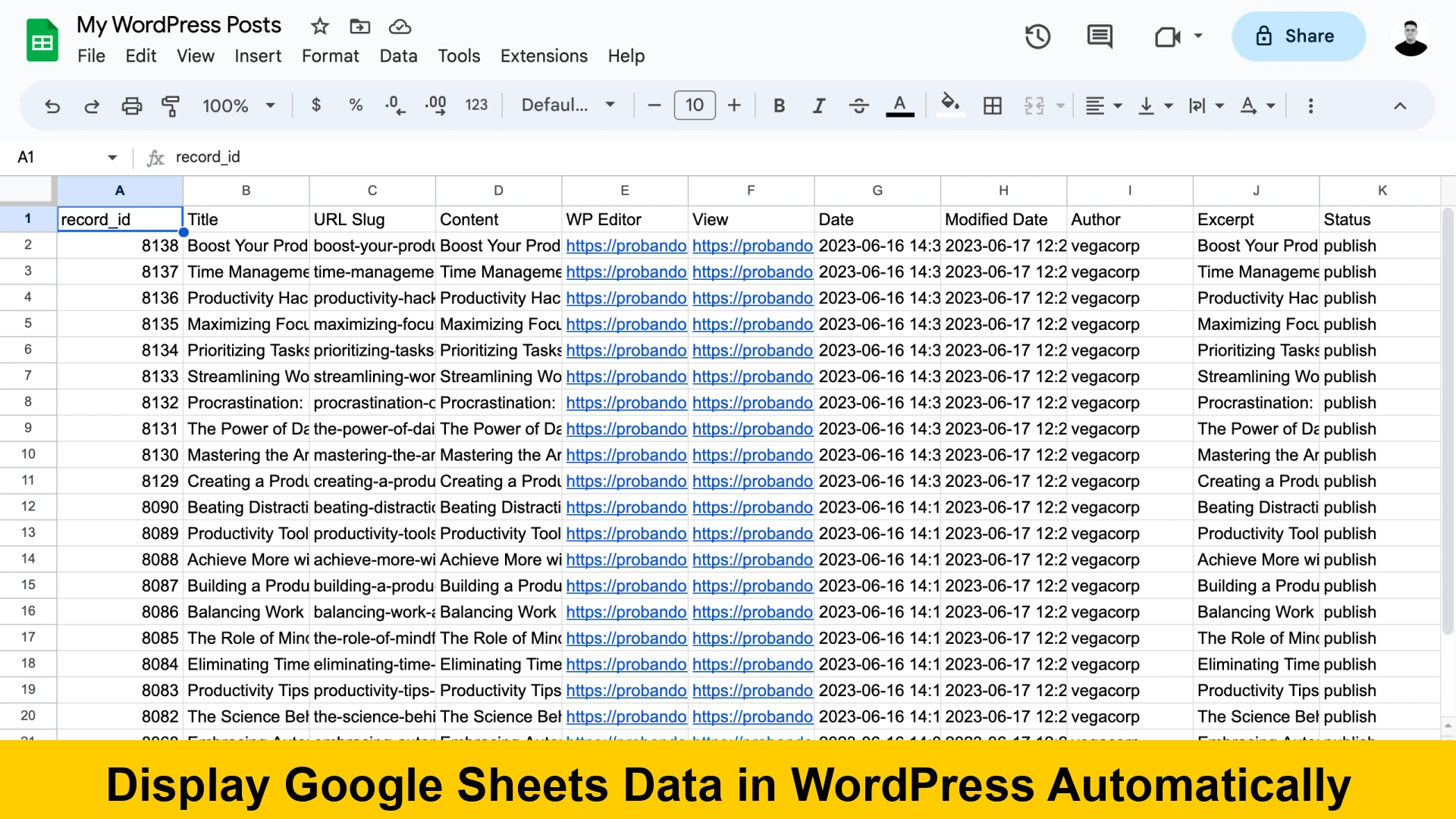
- Mapping: Map the spreadsheet columns (Title, Content, Excerpt) to the corresponding WordPress fields.
This is highly effective for directory sites or news aggregators where each row in a sheet represents a unique page or post on the site.
Design Best Practices for Spreadsheet Data
Once you have figured out how to sync google sheets with wordpress automatically, you need to ensure the data looks good. Raw spreadsheet data can often look cluttered on a mobile screen.
1. Responsiveness
Ensure your tables use a ‘stack’ or ‘scroll’ approach on mobile devices. Most plugins like Ninja Tables offer a ‘Responsive’ mode that hides less important columns on smaller screens.
2. Caching Considerations
Fetching data from Google every time a page loads can slow down your site. Use a caching layer. If you are using the API method, store the results in a WordPress Transient for 10-15 minutes to reduce external requests and improve load times.
3. Data Security
Never share a Google Sheet with ‘Anyone with the link can edit’ permissions if you are embedding it. Use ‘Anyone with the link can view’ or, better yet, use API keys to keep the data source private from the general public. This is a critical step when displaying live data from google sheets on wordpress.
Common Troubleshooting Steps
Even with the best wordpress google sheets integration, things can go wrong. Here are the most common issues and how to fix them:
- Permissions Error: Ensure your Google Sheet is set to ‘Published to the Web’ or that your API service account has access.
- Data Not Updating: This is usually a caching issue. Clear your WordPress cache and any CDN cache (like Cloudflare).
- Slow Load Times: If you are automatically display spreadsheet data in wordpress posts and it takes too long, reduce the number of rows being fetched or use a plugin with server-side processing.
Conclusion: Choosing the Right Method for Your Site
The best way to show google sheets data on wordpress site depends entirely on your technical comfort level and the complexity of your data. For most users, a premium plugin provides the perfect balance of ease and aesthetics. For developers, the Google Sheets API offers limitless possibilities for custom data visualization.
By implementing a real time google sheets integration for wordpress, you transform your website from a static brochure into a dynamic, data-driven platform. Start small by embedding a single sheet, and as you get comfortable with the tools, explore the world of automated post creation and complex data filtering. For more information on official Google developer tools, check the Google Sheets API Documentation.
Final Thoughts
Mastering how to connect google sheets to wordpress without coding is a superpower for any site administrator. It ensures your content is always fresh, reduces your daily workload, and provides your users with the most accurate data available. Whether you use a plugin or a custom script, the goal remains the same: seamless, automated synchronization.